
Chinese Captions for Japanese Meetings: Follow Along and Reply


You can get Chinese captions for Japanese meetings through Teams, Zoom, or Google Meet when the applicable subscription, language settings, and company policies allow it. (support.microsoft.com) If native translation is unavailable, a desktop tool such as Deeptrue can provide a separate caption display, subject to your company’s approval. Plan for three distinct tasks: understanding Japanese speech in Chinese, replying in Japanese, and preparing a reviewed written record.
Research date: November 29, 2026. Platform guidance below is based on official documentation checked on that date, not hands-on testing. Deeptrue details use its November 27, 2026 fact sheet and November 29 audio and Chinese-language clarifications.
Where should you start with Chinese captions for Japanese meetings?
Start with your company’s approved native option if it meets your needs. Ordinary Japanese captions transcribe Japanese speech; they do not necessarily translate it into Chinese. (support.microsoft.com)
Keep these three needs separate:
Your task | What you need | What it does not establish |
|---|---|---|
Read Japanese discussion in Chinese | Translated captions | A way to speak Japanese back |
Respond in Japanese | A sentence you can read aloud, or translated speech | A confirmed written decision |
Write meeting minutes | An approved transcript or notes, followed by review | That everything discussed was agreed |
Throughout this guide, imagine a fictional weekly meeting for project A-17, where you need to confirm a December 3 deadline. All sample phrases and instructions are editorial examples, not observed product output. The broader workflow is Japanese–Chinese meeting translation, not Japanese-to-English translation.
What should you check with your company first?
Before installing or enabling anything, ask whether you may:
- Install an external desktop app on your work computer.
- Let an external service process meeting audio.
- Save original and translated transcripts.
- Upload agenda notes, project documents, or past transcripts.
- Share the resulting notes with colleagues.
Deeptrue automatically saves the original and translated transcript with speaker labels after each meeting. Include that behavior in your approval request; do not assume there is a captions-only, no-saving setting.
A personal caption overlay does not establish local-only processing, invisibility to administrators, or permission to transcribe. Check your shared-screen preview before presenting, too—do not assume an overlay will be excluded from screen sharing or recordings.
If company policy prohibits external tools or transcription, use an approved native option or ask for another approved accommodation, such as written decisions in chat. Do not use a separate app to bypass the restriction. This is a workplace approval checklist, not a statement about Japanese law.
What do Teams, Zoom, and Google Meet offer?
As of November 29, 2026, all three document Japanese-to-Chinese translated-caption options. Their eligibility rules differ: “the organizer must always enable translation” is not a reliable rule across platforms. (support.microsoft.com)
Platform | Japanese input and Chinese scripts | Who needs the qualifying license? | Participant controls | If translation is unavailable |
|---|---|---|---|---|
Teams | Japanese (Japan) speech; Simplified and Traditional Chinese destinations, per caption documentation | Microsoft’s user guidance says an organizer with Teams Premium or Microsoft Copilot can provide access; individually licensed attendees can also use translation for themselves | Open caption settings to select spoken and translation languages | Check your joined account, entitlement, and administrator policy with IT. (support.microsoft.com) |
Zoom | Japanese input; Simplified and Traditional Chinese destinations, per configuration documentation | The host needs Workplace Business Plus, Enterprise Essentials, Enterprise Plus, Enterprise Premier, or an assigned Translated Captions add-on, per participant requirements | Participants independently choose a destination within the host’s available language pairs | Ask the host or administrator to check entitlement, captions settings, and available pairs. (support.zoom.com) |
Google Meet | Japanese input; Chinese (Simplified) and Chinese, Mandarin (Traditional), per current Help | Organizer-based eligibility. Current Help lists Business Standard/Plus, Enterprise Standard/Plus, and Google AI Pro for Education | Participants select source and destination languages in caption settings | Confirm the organizer’s edition and actual availability; Help notes rollout and beta-language caveats. (support.google.com) |
How do you turn them on?
- Teams: Open More actions > Captions, then Open caption settings. Set the spoken language to Japanese and the translation language to your preferred Chinese script. This is the route in Microsoft’s multilingual-meeting instructions. For more detail, see the Teams translated-caption guide. (support.microsoft.com)
- Zoom: Open the arrow beside Show Captions > Captions and translation, enable Translation, choose the Chinese destination, and select Save. Zoom’s participant guide documents these controls. The host must have automated captions enabled before translated captions; hosts configure language pairs, and administrators can lock settings, according to Zoom’s configuration guide. (support.zoom.com)
- Google Meet: Open More options > Settings > Captions, enable captions, select Translated captions, and set Translate from to Japanese and Translate to to Chinese. See Google’s current instructions. (support.google.com)
Teams documentation has a discrepancy worth checking. Microsoft’s administrator article describes an organizer-Premium requirement, while its user documentation includes individually licensed participants. Administrator policy can also disable captions, including translated captions. Ask IT to confirm your specific account and meeting. (learn.microsoft.com)
For Google Meet, use the current edition list above—not older Gemini-add-on requirements or the expired Enterprise Starter access period shown in historical documentation. Buying a Zoom add-on for yourself should not be assumed to unlock translation in someone else’s meeting: its documented requirement concerns the host. (support.google.com)
For Zoom add-on pricing and purchase information, its configuration page directs customers to Sales. (support.zoom.com)
How can you follow Japanese speech with Deeptrue on your computer?
If your company approves the workflow, Deeptrue runs alongside the meeting app on macOS 13+ or Windows 10+. It works with Teams, Zoom, Google Meet, Webex, and other desktop meeting apps without inviting a meeting bot.
- Install and open Deeptrue on the approved computer. Join the meeting normally. Only the person who wants translation runs Deeptrue; colleagues need no Deeptrue installation or account.
- Set your language and the other side’s language. Choose Simplified Chinese for yourself and Japanese for the other side. Traditional Chinese as used in Taiwan is also available. These are Chinese script options; Deeptrue does not offer Cantonese.
- Make sure the meeting’s audio plays on the computer. Deeptrue captures sound played by other applications, excluding Deeptrue itself. It does not depend on the meeting platform’s native caption stream or a platform integration.
- Use Live Translated Caption. Spoken sentences and translations appear in a semi-transparent overlay on your meeting screen. This does not change everyone else’s native captions. See the Live Translated Caption workflow.
- Rehearse with non-confidential Japanese audio. Silence unrelated browser tabs and applications because their playback can also be captured. Check your screen-sharing preview before presenting.
You do not need to select Deeptrue Microphone merely to read incoming translated captions. That virtual microphone is for sending translated speech through Interpreter Mode.
How can you reply in Japanese?
Chinese captions help you understand the discussion, but they do not speak your reply. Choose your response method before the meeting so you know what colleagues will hear.
Need | Deeptrue feature | What you do | What colleagues hear |
|---|---|---|---|
Understand Japanese discussion | Live Translated Caption | Read the Chinese translation | This feature does not deliver your reply |
Get help wording a reply you can read | Smart Suggestion (Assistant Mode) | Read the suggested Japanese sentence aloud | Your own voice |
Speak Chinese and deliver Japanese speech | Interpreter Mode | Speak Chinese; select Deeptrue Microphone in the meeting app | Japanese translation in a natural AI-generated voice |
When should you use Interpreter Mode?
Use Interpreter Mode when you want to speak Chinese and have Deeptrue deliver the Japanese translation. Select Deeptrue Microphone as the microphone in Teams, Zoom, Meet, or your other meeting app.
Unlike the personal caption display, this intentionally sends translated audio to colleagues. Rehearse the outgoing audio before the meeting.
When should you use Smart Suggestion?
Use Smart Suggestion (Assistant Mode) if you can read Japanese but need help composing a response. Deeptrue listens to the conversation and shows sentence suggestions in the target language; you read the chosen sentence aloud in your own voice.
For the fictional A-17 meeting, the clarification you want to communicate might be:
Japanese: 確認ですが、締め切りは12月3日でよろしいでしょうか。 Chinese: 确认一下,截止日期是12月3日,对吗? English: Just to confirm, is the deadline December 3?
This is an editorial example, not a promised output. With Interpreter Mode, you would express the question in Chinese for translation; with Assistant Mode, you would read an appropriate Japanese suggestion yourself.
Caption translation and speech translation are different features. Deeptrue is not the only possible route to translated speech: as of November 29, 2026, Google Meet’s separate Speech Translation documentation lists Chinese and Japanese, with its own plan, speaker-consent, and listening-control requirements. Those rules should not be substituted for translated-caption eligibility. (support.google.com)
How should you prepare polite Japanese and project terminology?
Before the meeting, prepare permitted, non-sensitive agenda notes, project names, abbreviations, and your preferred speaking style. In Deeptrue, Custom Instructions / Add Context lets you provide notes, files, or instructions to make suggestions more relevant.
For example, you could supply this instruction:
这是一场项目周会。请建议简短、礼貌的日语回复,使用です/ます体。保留项目代号A-17;不要替我承诺交付日期或批准方案。不确定时先建议澄清问题。
In English: “This is a weekly project meeting. Suggest short, polite Japanese replies using desu/masu style. Preserve the project code A-17. Do not commit me to delivery dates or approve proposals. When uncertain, suggest a clarification question first.”
Treat this as context for suggestions—not a mandatory caption glossary or a guarantee that every term will be recognized correctly.
Keep a small clarification card beside the meeting:
Japanese phrase | Chinese meaning | English meaning |
|---|---|---|
もう一度、ゆっくりお願いできますか。 | 能请您再慢一点说一遍吗? | Could you say that again more slowly? |
確認してから、改めてご連絡します。 | 我确认后再回复您。 | I’ll check and get back to you. |
これは提案ですか、それとも決定事項ですか。 | 这是提议,还是已经确定的事项? | Is this a proposal or an agreed decision? |
Confirm names, quantities, deadlines, and whether a point is a proposal or a decision. Do not infer agreement from a single polite phrase. Encourage clear turns and avoid overlapping speech; these practices also align with Microsoft’s caption guidance. (support.microsoft.com)
How do you turn a bilingual transcript into meeting minutes?
Deeptrue saves the original and translated transcript with speaker labels after each meeting. That gives you material to review—not automatically approved meeting minutes.
- Compare important Japanese wording with the Chinese translation. Focus on decisions, conditions, and commitments.
- Confirm uncertain names, numbers, and dates. In the A-17 example, check whether December 3 was proposed or accepted, and what deliverable it applies to.
- Separate discussion from agreed action. Do not turn a suggestion into an assigned task without confirmation.
- Prepare and circulate only the reviewed information permitted by company policy.
Copy this template for your meeting-notes workflow:
```text
议题/議題 (Topic):
日语原句 (Original Japanese wording):
中文理解 (Chinese interpretation):
已确认决定/決定事項 (Confirmed decisions):
待办/対応事項 (Action items):
负责人/担当者 (Owner):
截止日期/期限 (Deadline):
待确认项 (Open questions):
```
Do not assume that seeing captions means a record exists afterward. As of November 29, 2026, Microsoft states that Teams live captions are not saved; transcription is a separate function. This does not mean that native meeting platforms cannot retain text—check the specific approved recording or transcription workflow. (support.microsoft.com)
What should you check when captions or replies do not work?
Symptom | Check | Next action |
|---|---|---|
Native translation is missing | Applicable entitlement, joined account, administrator policy, and language pair | Use the platform-specific requirements above; do not assume one platform’s eligibility rules apply to another. (support.microsoft.com) |
Japanese text appears instead of Chinese | Speech-recognition language versus translation destination | Check the source and destination languages and confirm translated captions are enabled. (support.microsoft.com) |
Deeptrue receives no meeting speech | Whether meeting audio actually plays on the computer and required app permissions are allowed | Check audio playback and permissions before retrying with non-confidential audio. |
Unrelated audio enters the workflow | Other applications and browser tabs playing sound | Silence unrelated sources; Deeptrue captures other applications’ playback. |
Colleagues cannot hear the Japanese reply | Interpreter Mode and the meeting app’s microphone selection | Select Deeptrue Microphone for Interpreter Mode. In Smart Suggestion, you must read the sentence aloud yourself. |
A deadline or quantity looks uncertain | The original wording and context | Ask a clarification question and mark the item unconfirmed in your notes. |
What should you check before your next Japanese meeting?
If an approved personal caption-and-reply workflow fits your needs, you can download Deeptrue. Its Free plan includes 60 minutes in total, with up to 60 minutes per session—not a monthly allowance.
FAQ
Why is translation missing even though my company has a paid meeting account?
A paid account alone is not enough. As documented on November 29, 2026, Teams, Zoom, and Google Meet each have specific eligibility requirements. Check the relevant license holder, the account used to join, and applicable settings rather than assuming every company meeting includes translation. (support.microsoft.com)
Does every Google Meet participant need a paid subscription?
No—not under the organizer-based translated-caption model described in Google’s announcement. Participants can use translated captions in meetings organized by an eligible user. Use the current Help edition list, checked November 29, 2026, rather than older add-on requirements. (workspaceupdates.googleblog.com)
Can I use Teams translated captions if I am not the organizer?
Yes, potentially. As checked November 29, 2026, Microsoft’s user guidance allows access through an eligible organizer or your own qualifying license. Its administrator guidance describes a narrower organizer requirement, and policy can disable captions, so confirm your case with IT. (support.microsoft.com)
Will choosing Chinese captions change what other participants see?
In Zoom, participants independently choose caption translation within the host’s available language pairs, according to its participant documentation. Google’s live-caption guidance says turning captions on enables them only for the viewer; that does not itself establish translation eligibility. Both sources were checked November 29, 2026. (support.zoom.com) Deeptrue’s overlay is a separate display on your computer, but you should still check what your screen share shows.
Are captions saved for writing meeting minutes afterward?
Not necessarily. Teams live captions are not saved, according to documentation checked November 29, 2026; transcription must be enabled separately. (support.microsoft.com) Deeptrue automatically saves original and translated transcripts with speaker labels after meetings. In either workflow, review the record before treating it as confirmed minutes.
Related posts
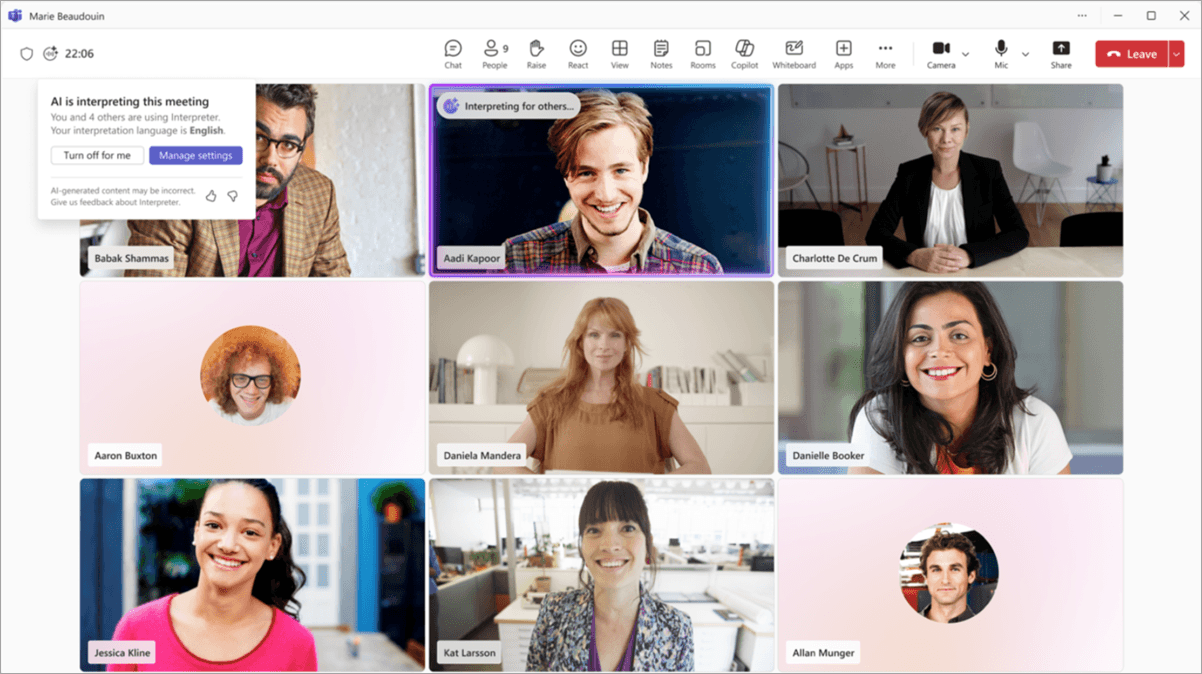
Teams Live Translation Without Copilot: Chinese Captions
Teams live translation without Copilot is possible. Learn how to get Chinese captions, check guest access, and send translated speech in meetings.
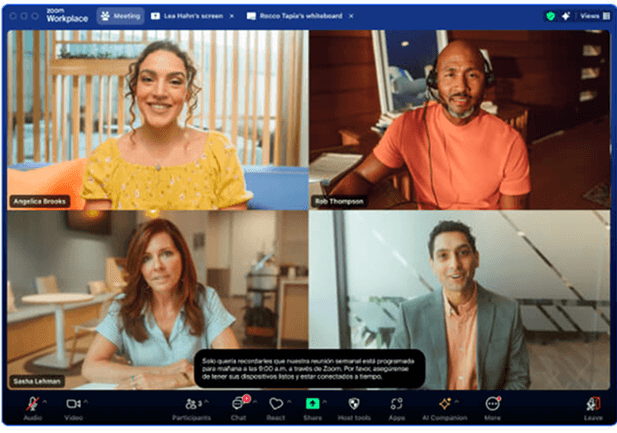
Zoom Captions: Setup, Chinese Translation and Button Fixes
Turn on Zoom captions, translate speech into Chinese, and fix missing controls. Learn which settings participants, hosts, and admins can change.
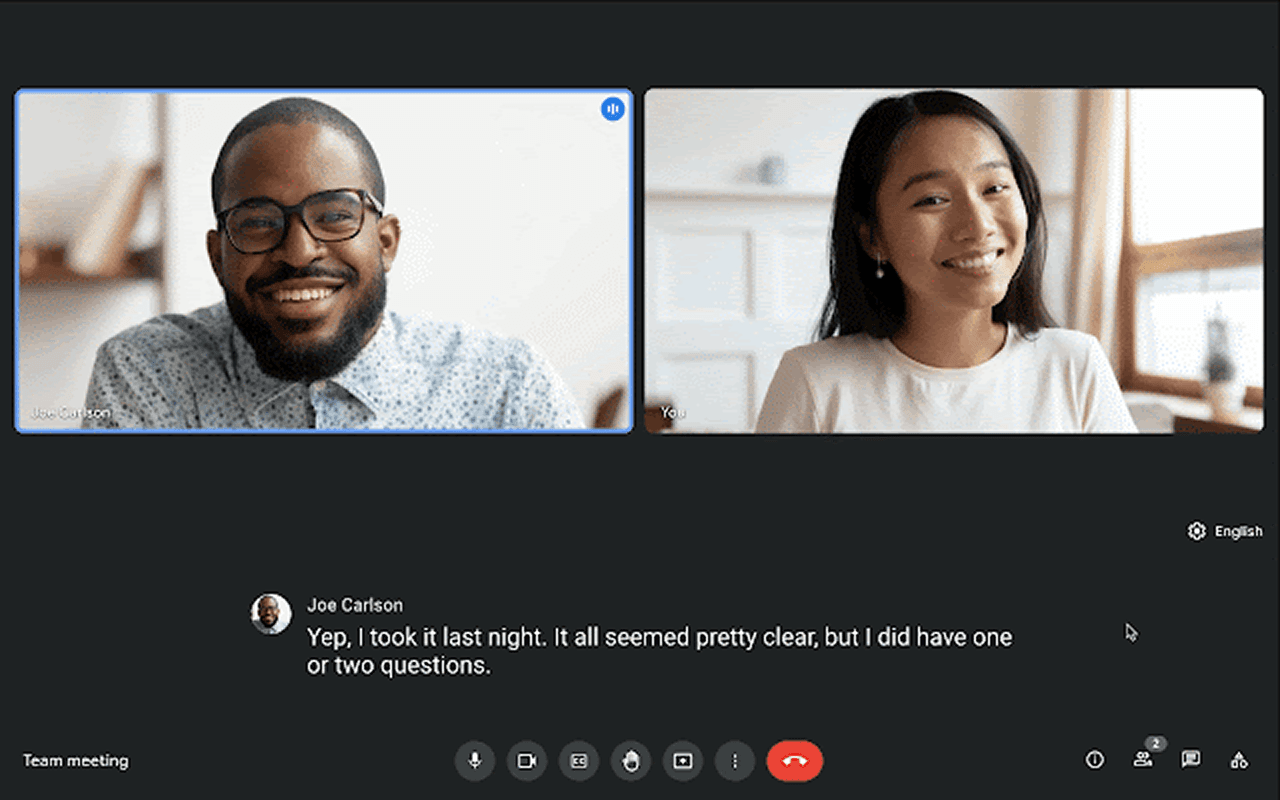
Google Meet Translated Captions: Setup for Your Own Screen
Set up Google Meet translated captions for your own screen. Check eligible plans, guest access, language settings, and fixes for missing options.
Stay in the loop
Get the latest Deeptrue updates and industry insights delivered to your inbox.