

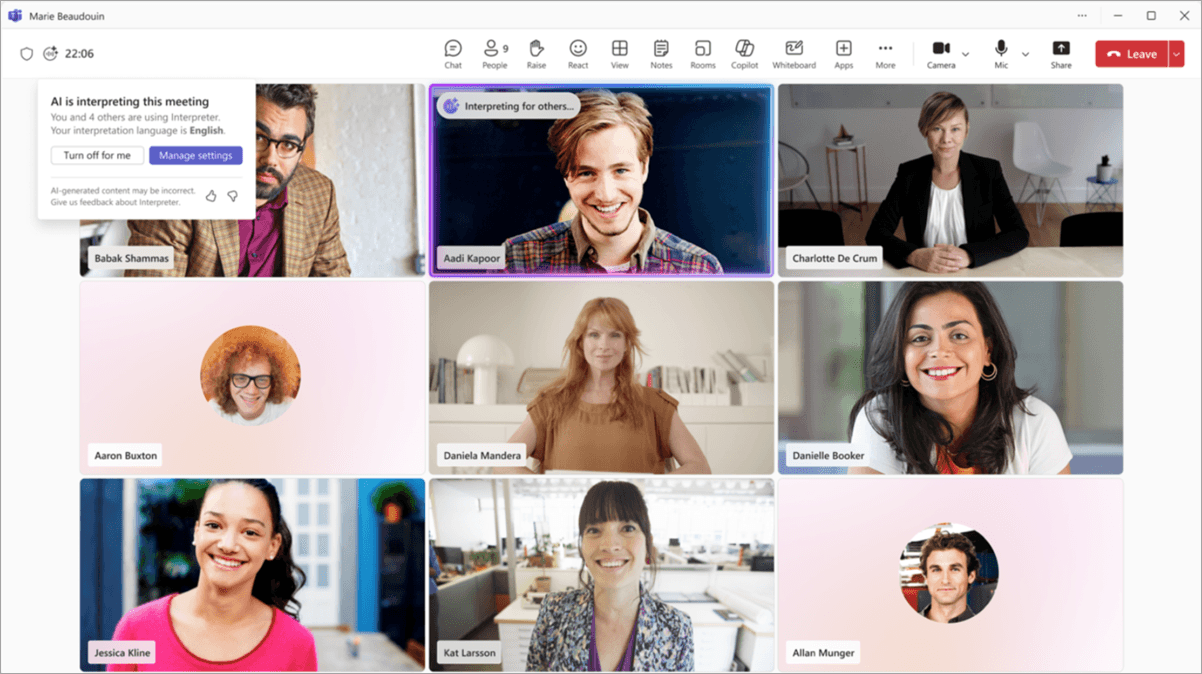
Teams live translation without Copilot is possible: Teams Premium can provide translated Chinese captions even when nobody in the meeting has Copilot. If you do not have your own Copilot license, an eligible organizer can also cover translated captions or activate separately billed consecutive interpretation. To read Chinese captions or speak Chinese and send translated audio without changing Teams licenses, another option is a desktop translator such as Deeptrue. (support.microsoft.com)
Official documentation checked: November 29, 2026. These instructions cover ordinary desktop meetings—not town halls, webinars, or meeting-room hardware.
How does Teams live translation without Copilot work?
Start with whose license matters, then decide what you want to receive or send.
Microsoft distinguishes two ways to qualify for native translated captions:
- Organizer coverage: If the organizer has Teams Premium or the eligible Microsoft 365 Copilot entitlement, Microsoft says translated captions and transcription are available to all meeting participants without individual translation licenses.
- Personal coverage: If you have Teams Premium or Microsoft 365 Copilot yourself, you can access translated captions for your own use. Your participant license does not cover everyone else. (support.microsoft.com)
These rules come from Microsoft’s live-caption documentation. Guest and anonymous access still need checking; “all participants” should not be treated as a guarantee for every joining identity. (support.microsoft.com)
Next, choose the outcome:
- Read Chinese text: Use translated captions. This might suit a Chinese-speaking student following an English seminar.
- Hear interpreted speech: Check Microsoft Interpreter’s mode-specific licensing. This might suit an employee attending an overseas team meeting.
- Speak Chinese and send English audio: Use a voice-interpretation workflow, not captions alone. This might suit a supplier answering questions on a client call. (support.microsoft.com)
Turning on translated captions does not translate your microphone output. (support.microsoft.com)
Are ordinary captions the same as translated captions?
No. Ordinary captions transcribe speech; translated captions change its language.
- Ordinary captions: English speech → English text.
- Translated captions: English speech → Chinese text. (support.microsoft.com)
Microsoft documents ordinary live captions in Teams Free. That documentation does not establish a free translated-caption entitlement. (support.microsoft.com)
Keep the interfaces separate:
- Teams Free: Microsoft’s Chinese-language instructions use More actions → Language and speech → Show live captions.
- Work or school meetings: The current English instructions open ordinary captions through More actions → Captions. (support.microsoft.com)
Also distinguish spoken language, meaning the language people are actually speaking, from translation destination, meaning the language you want to read. For an English seminar with Chinese output, the source should remain English and the destination should be Chinese. (support.microsoft.com)
Work or school administrators can allow or disable live captions through a per-user meeting policy. The default permits users to enable them, according to Microsoft’s administrator documentation. (learn.microsoft.com)
How do you turn on Chinese captions with Teams Premium?
The following is based on Microsoft’s documentation as of November 2026, not a claim that every client has the same interface or that we tested each layout.
- Check entitlement. Ask whether the organizer has Teams Premium or eligible Microsoft 365 Copilot coverage. Alternatively, confirm your own translated-caption entitlement.
- Open captions. In the documented work/school interface, select More actions → Captions.
- Check the spoken language. If the presentation is in English, the source language should be English—not Chinese just because you want Chinese subtitles.
- Open caption settings. If a captions pane is already visible, open its settings and look for Translate to. Microsoft’s current published translation procedure instead starts by opening RTT, enabling captions in that pane, and opening caption settings; read the warning below before taking that route.
- Choose the Chinese destination. Select Simplified Chinese for the default example in this guide. Microsoft also lists Traditional Chinese as a caption translation destination. (support.microsoft.com)
Sources: current caption controls and translation procedure and Chinese translation destinations.
RTT is not a private display toggle. Microsoft says activating Real-Time Text affects everyone in the meeting and cannot be reversed unless everyone leaves and rejoins. Coordinate with the organizer before enabling it; do not assume every client requires RTT simply because the current translation instructions use that route. See Microsoft’s RTT guidance. (support.microsoft.com)
If you cannot edit the spoken language while transcription is running, ask the organizer to correct it. Microsoft restricts that setting to designated roles, including the organizer, co-organizers, and the person who started transcription. Do not interrupt transcription merely to change the setting. (support.microsoft.com)
You can send this request before the meeting:
Could you check whether your meeting has translated-caption entitlement? I would like Simplified Chinese captions.
For organizers of bilingual discussions: Multilingual speech recognition is available through Teams Premium as well as Copilot and can operate without Interpreter. Organizers enable it in the calendar event’s recording/transcription options, after which participants can set their own spoken language. (support.microsoft.com)
For a text-focused walkthrough, see our Teams translated-caption guide.
Why is “Translate to” missing, especially when joining externally?
Check the symptom rather than buying a license immediately:
- Captions appear, but there is no translation control: Verify organizer or personal entitlement first. Ordinary captions do not prove translation is included. Then check the caption settings available in your actual client. (support.microsoft.com)
- There is no caption control at all: Ask the school or workplace administrator whether captions are permitted under the applicable meeting policy. (learn.microsoft.com)
- The text is wrong or remains in the wrong language: Confirm both the actual spoken language and your translation destination. Ask the organizer to handle a restricted source-language setting. (support.microsoft.com)
- You own a license, but joined under another identity: Check which account or identity you used for this invitation. Do not assume a home-organization license will be recognized when you join anonymously or through a guest identity.
For your access check, distinguish between joining with your own verified external work or school account, using a guest identity in the host organization, and joining anonymously. Ask the organizer which identity your invitation expects.
For translated captions, Microsoft’s Teams Premium platform matrix lists support for external communication with unmanaged Teams users, but marks anonymous-user support N/A. That does not establish either a universal guest guarantee or a categorical anonymous-user ban. (learn.microsoft.com)
The practical check is to open the actual invitation, confirm your joining identity, and verify the available controls with the organizer before the important session. Microsoft’s explicit guest restriction for simultaneous Interpreter listening, discussed next, should not be applied to every Teams translation feature. (support.microsoft.com)
Does everyone need Copilot for Microsoft Interpreter?
Not in every mode. As of November 2026, Microsoft’s administrator documentation distinguishes individually licensed simultaneous interpretation from organizer-funded consecutive interpretation. (learn.microsoft.com)
What does simultaneous interpretation require?
Individual simultaneous Interpreter access requires eligible Microsoft 365 and Teams licenses plus Microsoft Copilot. Teams Premium alone is not the listed entitlement. Microsoft includes 20 hours per licensed user per month; further access depends on capacity, and Teams Free is unsupported. See Microsoft’s Interpreter administrator requirements. (learn.microsoft.com)
For external participants, Microsoft requires a verified Microsoft 365 account with a valid Copilot license. Guest and anonymous identities cannot use this individual simultaneous-listening experience, because their licensing cannot be verified. This restriction comes from the end-user Interpreter documentation. (support.microsoft.com)
Both Microsoft’s administrator and end-user pages establish Mandarin support. Do not infer Cantonese support or treat a caption’s Chinese writing-system choice as a spoken-language option. (learn.microsoft.com)
The documented desktop activation sequence is:
- Select More actions → Interpreter.
- Choose the interpretation mode and languages.
- Select Turn on, subject to the mode’s licensing and role requirements. (support.microsoft.com)
What changed with consecutive interpretation?
Licensing checked November 29, 2026: Microsoft’s administrator page, last updated November 18, 2026, documents a separate consecutive mode. An eligible organizer needs the required base, Teams, and Copilot licenses plus enabled Copilot Credits billing. This mode is billed separately and supplies interpreted audio to all participants without requiring their own Copilot licenses. (learn.microsoft.com)
Only the organizer activates consecutive interpretation, using Teams desktop. It uses two conversation languages, and desktop and mobile participants can listen. These requirements are documented in Microsoft’s Interpreter administrator guide. (learn.microsoft.com)
For a Chinese-speaking attendee, this can mean no personal Copilot purchase, but it does not mean nobody needs Copilot, or that interpretation is free. (learn.microsoft.com)
Microsoft’s wording says audio is supplied to all participants; it does not explicitly guarantee every guest or anonymous identity scenario in the documentation reviewed here. Confirm access with the organizer. Equally, do not extend the simultaneous-mode guest prohibition to consecutive mode. (learn.microsoft.com)
Finally, keep Teams Premium, the eligible paid Microsoft 365 Copilot entitlement, and consumer-facing Copilot products separate. Do not treat a Copilot chat button as proof of Interpreter eligibility; ask your administrator to confirm the required licenses. (learn.microsoft.com)
How can you use Deeptrue without changing Teams licenses?
Deeptrue is a desktop app for macOS 13+ and Windows 10+. It captures the sound played by other applications on your computer, excluding Deeptrue itself. A Teams desktop app or a Teams browser tab can therefore supply the meeting audio; Deeptrue is not a browser extension.
Only the person who wants translation runs Deeptrue. Other participants install nothing and need no Deeptrue account, and no meeting bot has to be invited.
How do you read Chinese captions?
- Install and open Deeptrue on a supported computer.
- Set your language to Simplified Chinese and the other side’s language to the meeting language, such as English.
- Join the Teams meeting and make sure its sound plays on that computer.
- Follow Live Translated Caption, which displays spoken sentences and their translations in a semi-transparent overlay on top of the meeting screen.
Deeptrue also offers Traditional Chinese as used in Taiwan for written output. Choose the script you want to read; a writing system is not a spoken dialect, and Cantonese is not offered.
This setup does not depend on your Teams translated-caption entitlement. For a guest or anonymous attendee, the operational requirements remain: you must be admitted to the meeting and able to hear its audio on the computer. Follow school or employer rules before using a third-party translator.
How do you speak Chinese and send English audio?
- Use Deeptrue’s Interpreter Mode, with Chinese as your language and English as the other side’s language.
- Select Deeptrue Microphone in Teams. Microsoft documents desktop microphone selection under Settings and more → Settings → Devices, using the microphone dropdown in audio settings. See Teams device settings. (support.microsoft.com)
- Speak Chinese. Deeptrue sends the translated speech through the virtual microphone in a natural AI-generated voice.
You must have permission to speak in the meeting. This is not a way to bypass admission, muting, or workplace restrictions.
If Deeptrue Microphone does not appear, use the virtual audio driver troubleshooting guide. For more on the outgoing-audio workflow, see Teams interpretation with Deeptrue; Deeptrue’s Interpreter Mode is separate from Microsoft’s Interpreter agent.
Cost: Deeptrue Free includes 60 minutes total, with sessions up to 60 minutes—not 60 free minutes every month. With monthly billing, Pro costs USD 29 per member per month, includes 300 minutes monthly, permits sessions up to 100 minutes, and charges USD 0.12 per extra minute. See plan details.
If this setup fits your meeting rules, download Deeptrue and use the Free plan’s 60 minutes to check Chinese captions and practice your outgoing audio before an important call.
Which option fits your meeting?
The Microsoft rows below reflect official documentation checked November 29, 2026. “Check access” means the documentation does not establish an unconditional guest guarantee.
Option | Who pays or needs a license? | Who turns it on? | Chinese support and output | Works as a guest? |
|---|---|---|---|---|
Ordinary Teams captions | Not a Premium/Copilot translation entitlement; Teams Free captions are documented | Participant, where policy permits | Transcription, not English-to-Chinese translation | Check available controls and policy; no unconditional guarantee. (support.microsoft.com) |
Organizer-covered translated captions | Organizer has Teams Premium or eligible Copilot; participants need no individual translation license | Participant selects the destination; coordinate any RTT activation | Simplified or Traditional Chinese text | Organizer-wide wording applies, but guest/anonymous evidence has limits. (support.microsoft.com) |
Personally licensed translated captions | Participant has Teams Premium or eligible Copilot; covers that participant only | Licensed participant | Simplified or Traditional Chinese text | Do not assume a home license transfers to a guest or anonymous identity. (support.microsoft.com) |
Microsoft Interpreter: simultaneous | Each listener needs eligible base, Teams, and Copilot licenses | Eligible participant | Mandarin interpreted audio | Guest and anonymous identities cannot use individual simultaneous listening; verified licensed external accounts can. (learn.microsoft.com) |
Microsoft Interpreter: consecutive | Organizer needs eligible licenses and separately billed Copilot Credits; listeners need no personal Copilot | Organizer on Teams desktop | Interpreted audio between two conversation languages; Mandarin supported | Audio documented for all participants; each guest/anonymous scenario is not explicitly guaranteed. (learn.microsoft.com) |
Deeptrue Live Translated Caption | User runs Deeptrue under its Free or paid allowance; no additional Teams translation license | Deeptrue user | Simplified or Taiwan Traditional Chinese overlay text | Conditional on admission, audible computer playback, and applicable rules |
Deeptrue Interpreter Mode | User runs Deeptrue under its Free or paid allowance; no additional Teams translation license | User selects Deeptrue Microphone in Teams | Chinese speech → translated audio, such as English | Conditional on admission, microphone selection, speaking permission, and applicable rules |
FAQ
Can Teams show Chinese translation without anyone buying Copilot?
Yes. Teams Premium can provide translated captions without Copilot. An eligible organizer covers participants; a personally licensed attendee covers only their own use. Ordinary Teams Free captions are transcription, not a promise of translation. (support.microsoft.com)
Why do I have captions but no “Translate to” option?
Ordinary captions do not establish translation entitlement. Check the organizer’s or your own license, the identity used to join, and your client’s caption settings. If captions themselves are unavailable, ask the administrator about policy. Do not enable RTT casually: it affects the whole meeting. (support.microsoft.com)
Can I choose Simplified or Traditional Chinese captions?
Yes. Microsoft lists both as Teams caption translation destinations. Keep the actual spoken-language setting separate from the script you want to read. Deeptrue offers Simplified Chinese and Traditional Chinese as used in Taiwan. (support.microsoft.com)
Can guests or anonymous participants use translation?
It depends on the feature. Native translated captions require checking the actual identity and controls; individual simultaneous Interpreter listening excludes guest and anonymous identities. Consecutive interpretation supplies audio to all participants without personal Copilot licenses, but the reviewed documentation does not explicitly guarantee every guest scenario. Deeptrue instead works from computer audio, subject to admission and organizational rules. (learn.microsoft.com)
Do translated captions turn my Chinese speech into English audio?
No. Captions are text output. To send translated English speech through Deeptrue, use Interpreter Mode and select Deeptrue Microphone in Teams. You must also be allowed to speak in the meeting.
Related posts
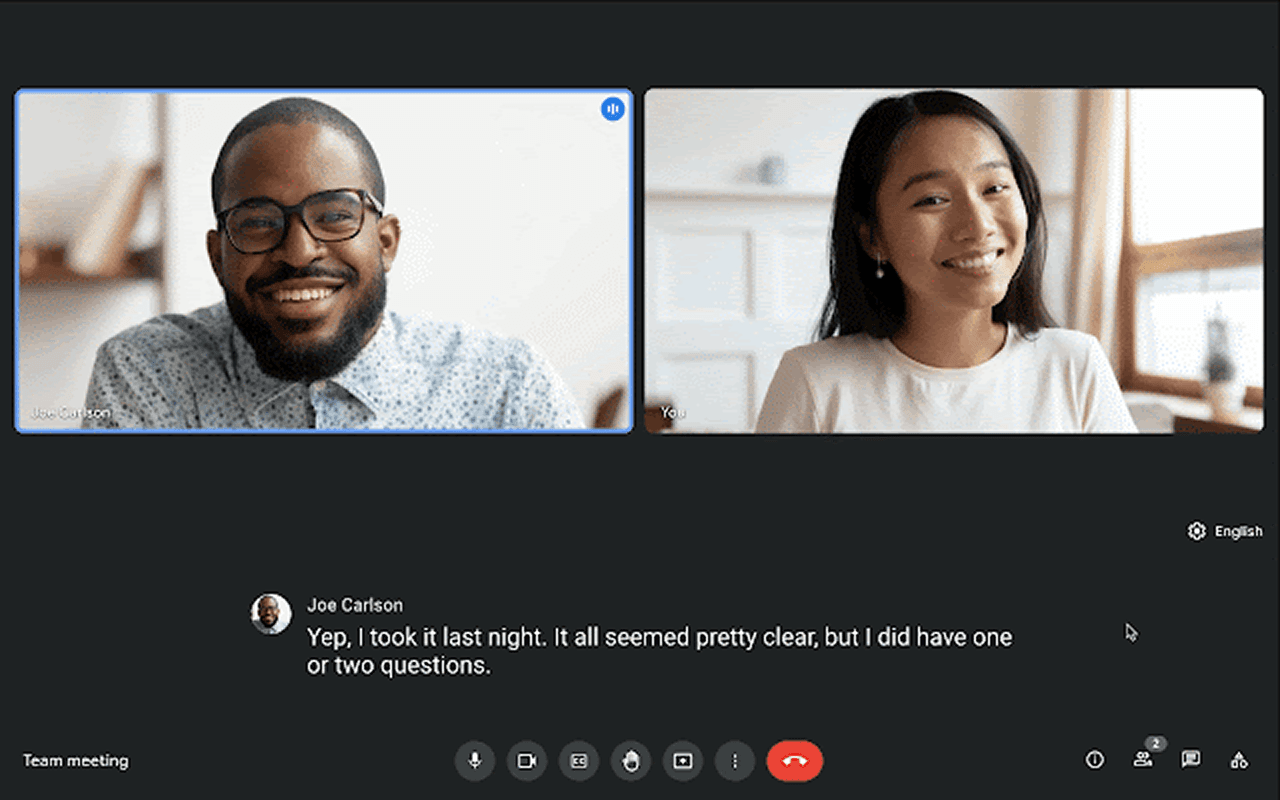
Google Meet Translated Captions: Setup for Your Own Screen
Set up Google Meet translated captions for your own screen. Check eligible plans, guest access, language settings, and fixes for missing options.
Can Teams Translate Chinese to English? Captions and Voice
Can Teams translate Chinese to English? Learn caption and voice options, licensing rules, Zoom settings, and how to reply to suppliers in Chinese.
Teams Interpreter Agent License: Copilot and Guest Rules
Check Teams Interpreter agent license requirements, guest restrictions, translated caption access, and costs before buying Premium or Copilot.
Stay in the loop
Get the latest Deeptrue updates and industry insights delivered to your inbox.