
Google Meet Translated Captions: Setup for Your Own Screen

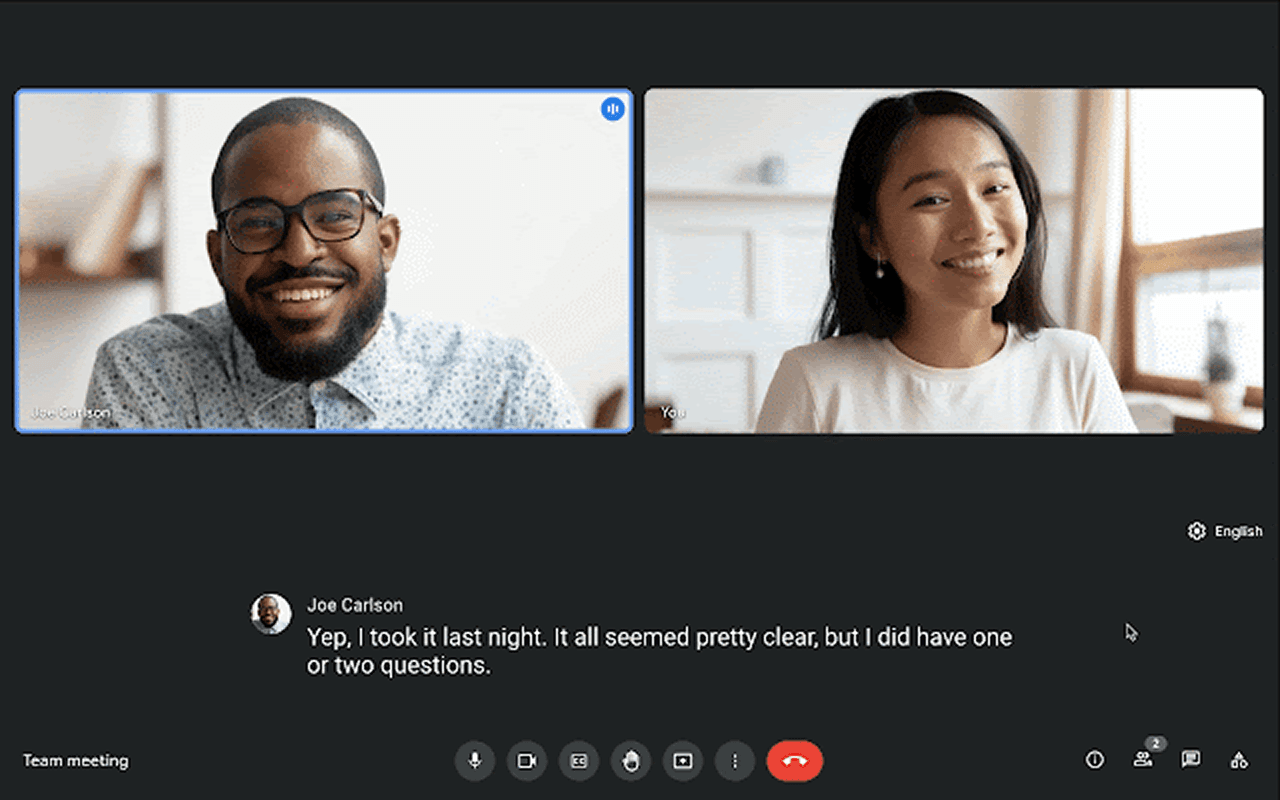
Google Meet translated captions let you read a meeting in another language on your own screen without changing everyone else’s caption display. Your display choice is personal, but access depends on eligibility—not simply on turning captions on. On a computer, start with More options → Settings → Captions, enable captions, select Translated captions, and choose the spoken and translation languages. (support.google.com)
Google product information checked November 23, 2026.
Can I use Google Meet translated captions just for myself?
Yes—personal display and feature eligibility are separate questions. Google says live captions are enabled only for the viewer, while its translated-caption instructions let that viewer select a translation language. Read together, these documents support personal translated-caption display rather than a meeting-wide language change. See Google’s live-caption guidance and translated-caption guidance. (support.google.com)
First, choose the feature that matches what you need:
Feature | What you see or hear | What it does not mean |
|---|---|---|
Original-language captions | Written text of the spoken language | Turning captions on does not automatically translate them. |
Translated captions | Written translation in your selected language | Your selection does not set everyone else’s caption language. |
Speech translation | Translated audio in your selected listening language | It is a separate feature with consent, eligibility, and usage rules. |
These are separate controls for reading or listening to a meeting. (support.google.com)
“Just for me” describes the caption display. It does not promise invisible activity, local-only processing, or an exemption from your organization’s rules for translation tools.
Which plans, participants, and languages qualify?
Which subscriptions include translated captions?
As of November 2026, Google’s translated-caption help page lists these editions:
Subscription family | Listed eligible editions |
|---|---|
Google Workspace Business | Business Standard, Business Plus |
Google Workspace Enterprise | Enterprise Standard, Enterprise Plus |
Education | Google AI Pro for Education |
Enterprise Starter’s documented access ended June 30, 2025, so it should not be treated as currently eligible. (support.google.com)
Do not assume that every Google AI subscription includes standalone translated captions. Speech-translation eligibility and translated-caption eligibility have different lists. (support.google.com)
Translated captions are included in the specified subscriptions. The reviewed Workspace pricing page does not list a standalone translated-caption add-on price; bundled subscription prices should not be treated as the price of captions alone. (support.google.com)
Does the organizer or each participant need an eligible plan?
The organizer’s meeting eligibility matters. Google’s caption-language announcement, updated January 15, 2025 and checked November 23, 2026, says participants can use translated captions in meetings organized by an eligible Workspace user.
That means being an external guest is not automatically disqualifying. However, this does not establish every anonymous-join or personal-account combination. If you are joining a client’s meeting, check the actual meeting link and account rather than assuming your own subscription—or guest status—settles access.
Can I translate English into Japanese or Korean?
Yes. Google’s documented caption source and target languages include English, Japanese, Korean, simplified Chinese, and Mandarin Chinese in traditional characters. (support.google.com)
Check the complete caption-language list for your required combination. Google notes gradual availability and variable quality for beta languages, so a listed language is not a reason to skip a pre-meeting check. (support.google.com)
How do I turn on translated captions on a computer?
Use either the settings route or the toolbar shortcut below. These are documented setup instructions, not a reported hands-on test.
How do I use the settings route?
- Join the Google Meet meeting using the account you intend to use for the call.
- Open More options → Settings → Captions.
- Enable captions.
- Under Language, select Translated captions, rather than original-language captions.
- Under Translate from, choose the language people are speaking.
- Under Translate to, choose the language you want to read.
Example setup: For an English-speaking meeting with Japanese captions, select Translate from: English and Translate to: Japanese. For Korean captions, keep English as the source and select Korean as the target.
Google documents this route in its video-meeting tips. (support.google.com)
How do I use the toolbar shortcut?
- At the bottom of the meeting, hover over Captions and translation and select Turn on captions.
- In the dropdown on the left of the caption tray, select Translated captions.
- Check your language selections; use Settings if you need to adjust Translate from and Translate to.
This is an alternative route—not an extra set of steps required after using Settings. (support.google.com)
If your interface is localized, Google’s documented labels include:
Control | Japanese interface | Korean interface |
|---|---|---|
Translated captions | 字幕の翻訳 | 번역된 자막 |
Source language | 原文の言語 | 출발어 |
Target language | 訳文の言語 | 도착어 |
These labels appear in Google’s Japanese instructions and Korean instructions, checked November 23, 2026. (support.google.com)
Can I adjust readability or review earlier captions?
Google lets you customize caption appearance and scroll through earlier translated captions. Adjust the appearance before the discussion becomes busy. (support.google.com)
The history has an important boundary: it covers conversation while you were present with captions enabled. It does not recover speech from before you enabled captions, and scrolling caption history is not the same as downloading a meeting transcript. See Google’s caption appearance and history guidance. (support.google.com)
What changes on Android or iPhone?
The documented mobile labels differ, so do not follow the desktop path word for word:
Device | Documented controls |
|---|---|
Android | Tap the meeting screen, then More controls → Settings. Under Captions, tap Translation Language; choose a language, tap Save, and close settings. |
iPhone or iPad | Tap the meeting screen, then More controls → Settings. Under Captions, tap Language of the call; choose the caption language and tap Done. |
These paths come from Google’s Android help and iPhone/iPad help. The translated-caption eligibility check still matters. (support.google.com)
Why are translated captions missing or not translating?
Use the following as diagnostic checks—not as a ranking of measured causes.
Symptom | What to check | Next action |
|---|---|---|
No translated-caption choice | The organizer’s eligible edition, the actual meeting, and your signed-in account | Confirm the organizer’s plan and recheck using the account you will use for the meeting. Do not assume upgrading your own account fixes every meeting. |
Text appears only in the spoken language | Caption mode | Select Translated captions, not original-language captions. |
Translation is in the wrong language | Translate from and Translate to | Match the source to the speaker and the target to your reading language. |
A required language is unavailable | Google’s current language list and availability notes | Check whether the language is listed and whether gradual availability applies. An upgrade is not a guaranteed fix. |
Earlier conversation is missing | When you joined and enabled captions | History cannot recover speech from before captions were enabled. Turn captions on at the start next time. |
Caption language follows translated audio | Whether speech translation is also enabled | Review the speech-translation listening language; when both features are active, captions match the translated audio. |
These checks follow Google’s translated-caption documentation, caption setup and history guidance, and speech-translation help. (support.google.com)
Google’s translated-caption help does not specify a separate translation-minute quota. That is not evidence of unlimited use, and speech-translation time limits should not be applied to standalone captions. (support.google.com)
What about Gemini speech translation?
Speech translation is for hearing translated audio, rather than only reading text. Google’s October 22, 2026 update expanded it to combinations of 63 languages, automatic spoken-language detection, and independent participant controls. Older instructions requiring one meeting-wide language pair are outdated; English, Japanese, and Korean are supported. (workspaceupdates.googleblog.com)
How do listening and voice consent differ?
- Open the bottom Captions and translation control and select Translate speech.
- Choose the language you want to hear.
- Treat permission to translate your own voice as a separate choice: speakers must consent.
Other listeners must enable speech translation themselves and receive a notification offering that choice. Your selection does not automatically make everyone hear translated audio. You can stop listening through the active translation control and separately revoke outgoing-voice consent. When captions and speech translation are both enabled, captions match the translated audio’s language. See Google’s speech controls and consent guidance. (support.google.com)
Which speech plans and restrictions apply?
These are speech-translation limits, not standalone caption limits:
Plans listed in current end-user help | Speech translation per meeting |
|---|---|
Google AI Pro; Workspace Business Standard/Plus; Enterprise Standard/Plus; Frontline Plus; AI Pro for Education | 90 minutes |
Google AI Ultra; AI Expanded Access | Eight hours |
These limits are listed in Google’s current end-user documentation. (support.google.com)
The October announcement also lists AI Ultra Access with eight hours; that name is absent from the reviewed end-user help list. The two lists differ, so check your exact subscription name. (workspaceupdates.googleblog.com)
External-domain guests qualify when the organizer has an eligible plan. In direct one-to-one calls, either participant’s eligible plan enables access for both. (workspaceupdates.googleblog.com)
For Workspace, speech translation is administratively enabled by default but requires the relevant Gemini setting; admins can control access by organizational unit or group. See the admin guidance. (knowledge.workspace.google.com)
Google’s announcement excludes livestreams, recordings, client-side-encrypted meetings, dial-in/interoperability calls, and adaptive audio. Regional and age restrictions apply; Google Meet room hardware supports listening, not translation of room-originated speech. (workspaceupdates.googleblog.com)
For broader voice workflows, see our Google Meet interpretation guide.
When does a translation app on my own computer fit better?
Use Meet’s native translated captions first if they meet your needs. A separate desktop app may fit when translation is unavailable in the actual meeting, the relevant Google edition is absent, or you prefer to configure translation independently on your computer.
Deeptrue is a desktop app for macOS 13+ and Windows 10+ that works alongside Google Meet. Only the person who wants translation runs it: no meeting bot is invited, and other participants install nothing and need no account.
Its Live Translated Caption feature shows the original spoken sentence and its translation in a semi-transparent overlay above the meeting screen. Deeptrue supports 31 languages, including English, Japanese, and Korean. Check your required languages rather than assuming a separate app offers broader coverage than Google.
To use it alongside your meeting:
- Install the Deeptrue desktop app on a supported computer.
- Follow its in-app setup.
- Use Live Translated Caption alongside your Google Meet meeting.
This is a reading workflow. Deeptrue’s Interpreter Mode is a separate outgoing-voice feature and is not needed simply to read translated captions.
If the desktop approach fits, download Deeptrue and try the Free plan’s 60 included minutes, with up to 60 minutes per session. See pricing and plan limits before relying on it for longer meetings.
What should I check before the meeting?
Use this short checklist with either native captions or a separate translation app:
- Account and meeting: Check the actual account and meeting link you will use—not just a different test meeting.
- Caption mode: Confirm that translation is selected, rather than original-language captions.
- Languages: Verify the spoken source language and your reading language.
- Readability: Check that you can follow the text while viewing shared content.
- Terminology: Rehearse briefly with representative names, acronyms, and technical terms. Confirm important figures and decisions directly during the call.
- Screen sharing: Inspect the sharing preview before presenting confidential material. Do not assume a caption overlay is excluded from screen capture.
- Workplace policy: Check whether your organization permits the translation workflow you plan to use.
FAQ
Can each participant choose a different caption language?
Yes, where translated captions are available to them. Caption display and target-language selection are personal; your choice does not change another participant’s caption language. This follows Google’s viewer-only caption guidance together with its translated-caption settings. (support.google.com)
Can guests or people with a free Google account use translated captions?
Guest status alone does not rule out access: Google describes participant access in meetings organized by eligible Workspace users. However, this does not settle every anonymous or personal-account joining scenario. Check access in the actual meeting rather than assuming either guaranteed availability or a blanket guest restriction.
Do ordinary live captions translate automatically?
No. Ordinary live captions display the spoken language. Select Translated captions, then set Translate from and Translate to to read a translation. (support.google.com)
Will other participants hear translated speech if I enable translated captions?
No—translated captions are text, not translated audio. Speech translation is separate: listeners enable it themselves, and speakers must consent to having their voices translated. (support.google.com)
Can I review captions from before I enabled them?
No. Google’s documented caption history covers conversation while you were present with captions enabled. Enable captions at the beginning if you want to review that conversation later in the caption tray. (support.google.com)
Related posts
Teams Interpreter Agent License: Copilot and Guest Rules
Check Teams Interpreter agent license requirements, guest restrictions, translated caption access, and costs before buying Premium or Copilot.
2026 Guide: Google Meet Live Translation & AI Voice Interpretation
Learn how Google Meet live translation and AI voice interpretation work in 2026, including plans, limitations, and a cross-platform alternative like Deeptrue.

How to Implement Live Translation for Meetings: A Step-by-Step Guide
Learn how to set up live translation for meetings with real-time translated captions to improve multilingual collaboration and make meetings more inclusive.
Stay in the loop
Get the latest Deeptrue updates and industry insights delivered to your inbox.