
2026 Guide: Google Meet Live Translation & AI Voice Interpretation

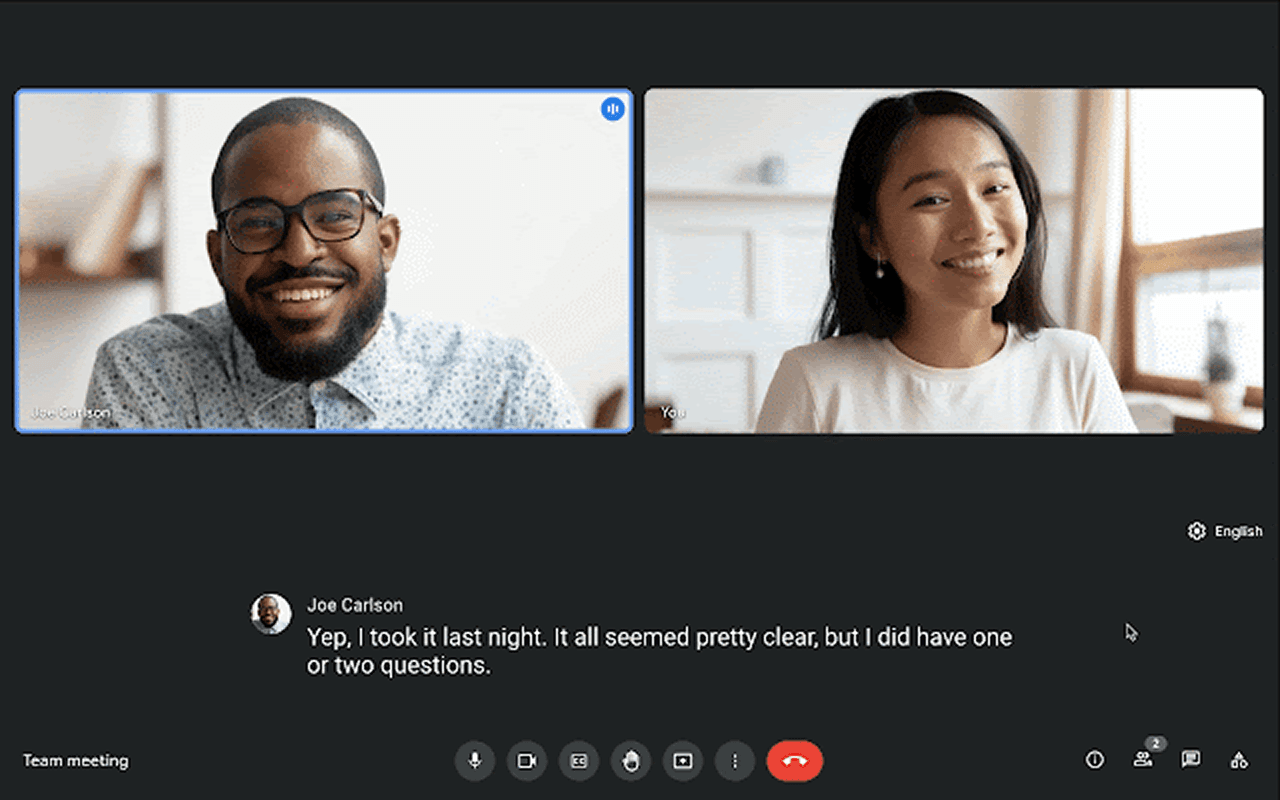
In global meetings, the real challenge is not joining the call, but understanding each other.
Update, November 2026: Google Meet's speech translation now covers 63 languages, rolling out from October 22, 2026, for Business Standard and higher plans; the organiser's plan decides, and guests from other domains are included (Google Workspace Updates). Deeptrue does not depend on the organiser's plan and works the same way in Zoom, Teams and other meeting apps.
Google Meet is widely used for global meetings because it’s free and easy to access.
You may also have heard that it supports real-time translation features.
However, how Google Meet’s translated captions and AI voice interpretation actually work,
and who can use them, is more complex than it appears.
This guide clearly explains:
- How Google Meet live translation and AI voice interpretation work
- Required plans, rollout status, and real limitations
- A cross-platform alternative that works across Meet, Zoom, Teams, and Webex
🔍 Overview: Google Meet Real-Time Translation

(Image credits: Google Meet)
Google Meet’s language features are powered by Google AI and Gemini and fall into two main categories:
- Live translated captions (speech → translated text)
- AI voice interpretation (speech → translated voice, beta)
Availability varies significantly depending on your plan, organization, region, and rollout stage.
📝 Live Translated Captions in Google Meet

(Image credits: Google Meet)
Live translated captions display spoken content as real-time translated text.
Key Features
- Supports 60+ languages
- Powered by Gemini AI
- Text-only output (no voice translation)
How to Use
- Join a Google Meet meeting
- Click CC (Captions) at the bottom
- Open caption settings
- Enable Translated captions
- Select your preferred language
Availability
- Google Workspace Business / Enterprise plans
- External guests may be restricted depending on organization policy
⚠️ Translated captions are not guaranteed for all participants.
Availability depends on account type, admin settings, and meeting configuration.
🗣️ Google Meet AI Voice Interpretation (Beta)

(Image credits: Google Meet)
AI voice interpretation is Google Meet’s most advanced translation feature.
It translates spoken language in near real time and plays it back using AI-generated voice.
Unlike captions, participants hear the meeting in another language.
Key Capabilities
- Real-time speech translation powered by Gemini
- Synthetic voice reflecting the speaker’s tone and pacing
- Initially launched with English ↔ Spanish
- Gradually expanding to major European languages
🛠 How to Turn On AI Voice Interpretation

(Image credits: Google Meet)
If your Workspace account supports the feature:
- Join a Google Meet meeting
- Click (More) in the meeting controls
- Select Speech translation
- Enable AI voice translation
- Choose your spoken language → target language
Once enabled, AI voice interpretation applies to the entire meeting.
✅ Important Notes
- Only one participant with an eligible plan is required to enable it for everyone
- Other participants and external guests can hear the interpreted audio without any plan or setup
- Interpretation is applied at the meeting level, not per participant
(participants cannot each choose different output languages)
🔎 Current Status (2026)
- Requires Gemini-enabled Google Workspace plans (AI Pro / AI Ultra)
- Still in beta / staged rollout
- Language support and availability vary by region and organization
- Not enabled by default for all users
👉 For most users, AI voice interpretation is available only under specific conditions.
💰 Google Meet Translation Plans (2026)
Plan | Translated Captions | AI Voice Interpretation |
|---|---|---|
Free Google Account | ❌ | ❌ |
Basic Workspace | ⚠️ Limited | ❌ |
Workspace + Gemini | ✅ | ⚠️ Beta |
AI Pro / AI Ultra | ✅ | ⚠️ Gradual rollout |
Pricing and availability vary by region and contract.
🚫 Limitations of Google Meet Translation
Limitation | Details |
|---|---|
Eligible plan required | Requires Gemini-enabled Workspace plans; free accounts not supported |
Host-dependent availability | Translation works only if the meeting host’s Workspace plan is eligible |
AI voice interpretation is beta | Beta feature, limited availability |
Limited language support (voice) | Supports few language pairs |
Meeting-level only | Applied per meeting, not per participant |
External guest limitations | Guests rely on host eligibility |
Platform lock-in | Works only inside Google Meet |
Gradual rollout | Not enabled for all organizations yet |
🌍 Deeptrue: Real-Time Translation & Interpretation Across Platforms

Deeptrue works across Zoom, Microsoft Teams, Google Meet, Webex, and more.
✅ Real-time translated subtitles
✅ Smart sentence suggestions
✅ Automatic meeting notes
✅ AI voice interpretation (your voice → target language)
New users receive 60 minutes free.
🗣 How to Use Deeptrue with Google Meet

- Download at deeptrue.org (Mac / Windows)
- Select My Language → Partner Language
- Example: Korean → English
- Join a meeting and run Deeptrue
- Translations appear automatically
🎧 Deeptrue AI Voice Interpreter Setup

Deeptrue translates your speech and outputs voice to others in real time.
Mac:
- Run Deeptrue
- Select mic input → Deeptrue Microphone
Windows:
- Run Deeptrue
- Install VB-Cable
- Select CABLE Output (VB-Audio Virtual Cable) as mic
Then simply speak your language → the other side hears the translated voice.
💬 What Deeptrue Adds to Meetings
- Real-time translated subtitles
- Smart sentence suggestions while speaking
- Automatic meeting transcripts
- AI Interpreter Mode (your voice → translated voice output)
💡 Best Use Cases for Deeptrue
- International sales calls
- Investor pitches
- Client support meetings
- Cross-border collaboration
- Interviews and recruiting
Minimal delay and natural-sounding voice output.
📊 Google Meet vs Deeptrue (2026)
Feature | Google Meet | Deeptrue |
|---|---|---|
Text translation | ⚠️ Paid plans | ✅ Included |
AI voice interpretation | ⚠️ Beta | ✅ Available |
External guest support | ⚠️ Limited | ✅ Full |
Self-activation | ❌ Plan-dependent | ✅ Yes |
Multi-platform support | ❌ Meet only | ✅ Meet / Zoom / Teams / Webex |
Setup | Admin + plan required | Install and start |
Free trial | ❌ None | ✅ 60 minutes |
📎 Conclusion
Google Meet continues to expand its AI-powered translation capabilities.
However, most translation and voice interpretation features:
- Require paid Gemini-enabled Workspace plans
- Are limited by rollout stage, language support, and region
- Work only inside Google Meet
For teams operating across platforms and languages,
an independent AI interpreter like Deeptrue offers a more practical and flexible solution.
In 2026, the most effective setup is often:
Use Google Meet’s built-in features for internal collaboration,
and rely on a cross-platform AI interpreter like Deeptrue
for real multilingual communication anywhere.
Using Google Meet for meetings across languages? See Google Meet translation with Deeptrue and AI voice interpretation in Google Meet. Rolling it out to a team? Deeptrue for Teams covers seats, roles and billing.
Related posts
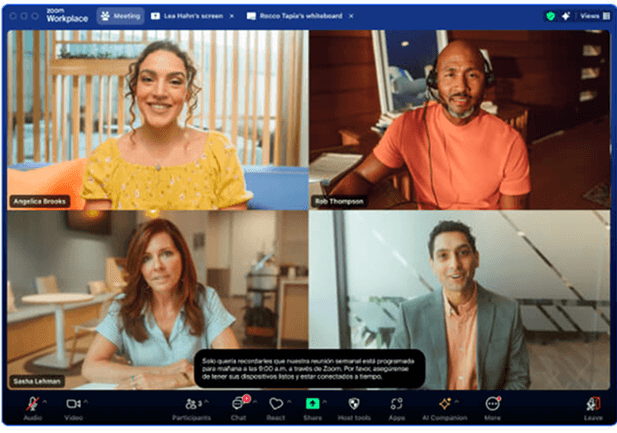
2026 Guide to Zoom Real-time Translation
Learn about Zoom's translated captions and AI Voice Translator, and when Deeptrue's live captions and voice interpretation fit better.
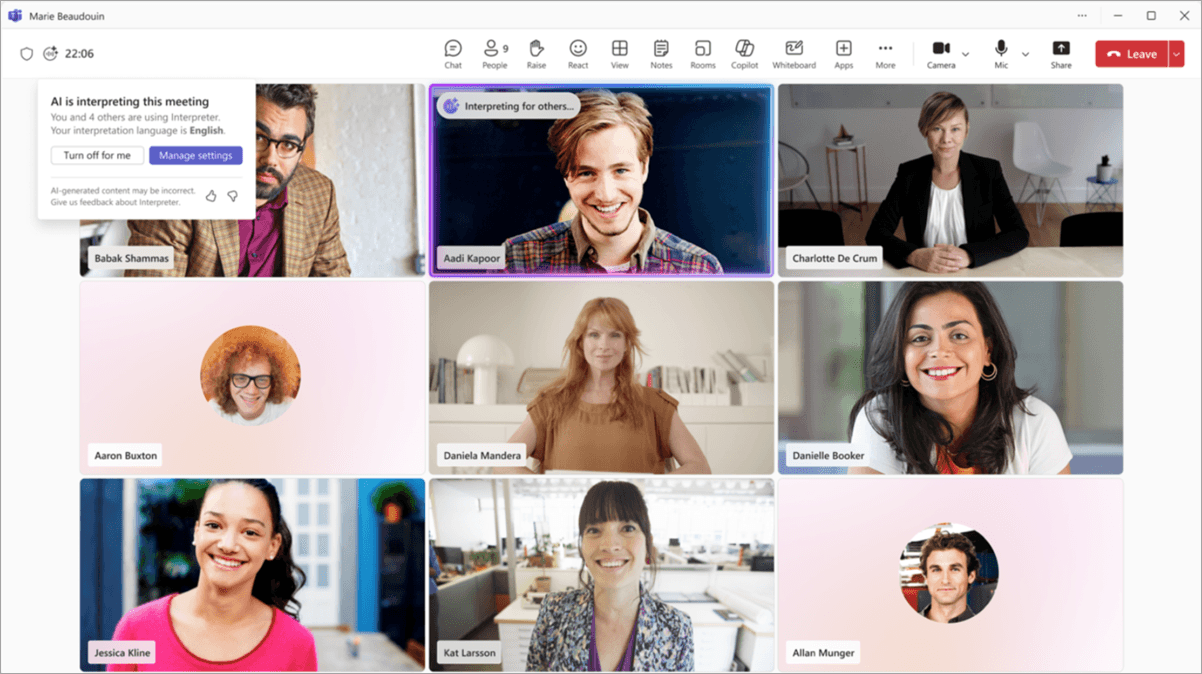
2026 Guide: Microsoft Teams Live Translation & AI Voice Interpretation
Explore real-time translation and AI voice interpreting in Microsoft Teams. Compare Deeptrue, available on Zoom, Teams, Meet, and Webex.
Stay in the loop
Get the latest Deeptrue updates and industry insights delivered to your inbox.