

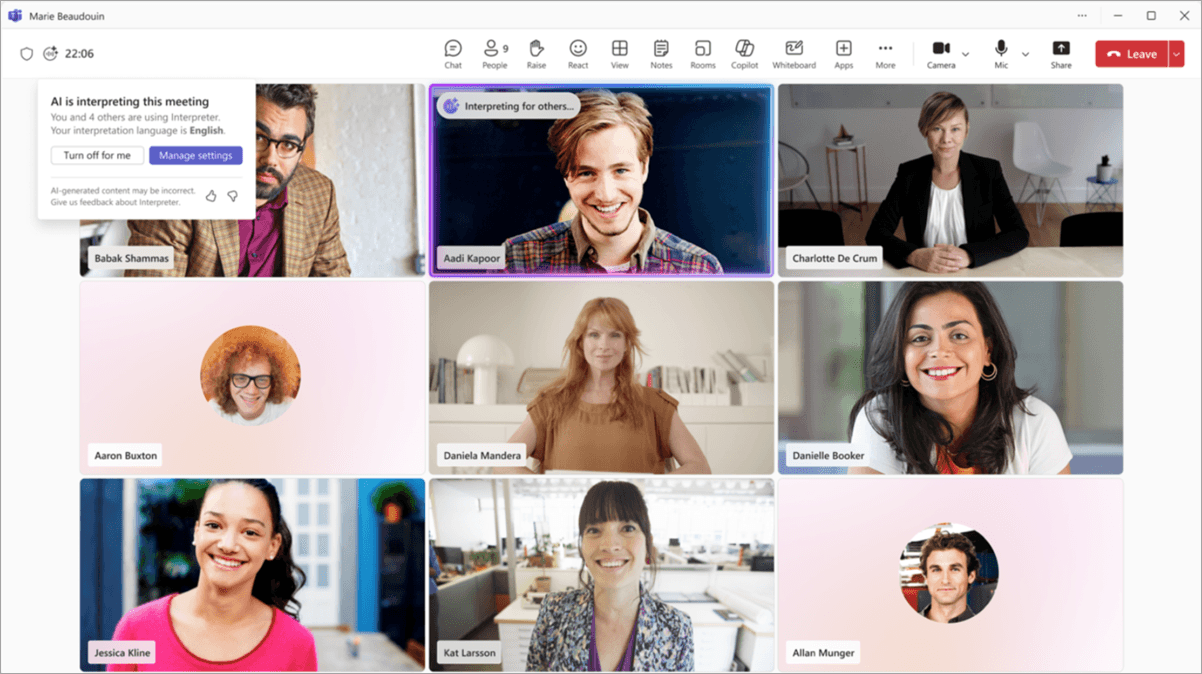
To meet the Teams Interpreter agent license requirements as an individual user, you need eligible Microsoft 365 and Teams licenses plus Microsoft 365 Copilot—not Teams Premium alone. As of November 13, 2026, external participants can use Interpreter with a verified Microsoft 365 account and valid Copilot license, but participants joining as guests or anonymously cannot. If you only need translated text, captions have different licensing rules and may already be available through your organizer or your own entitlement. (Interpreter prerequisites, external participant rules, caption entitlement)
Can Teams translate a meeting just for you?
Yes, conditionally—but first decide what “for you” means:
- Reading: You see translated captions while listening to the original speaker.
- Listening: You hear interpreted speech in your selected language.
- Speaking: You speak in your own language and send translated speech to others.
These are different workflows. For example, an employee joining an English-language customer meeting may only need Japanese captions—not voice interpretation or a new Copilot purchase.
How do the options differ?
The following comparison reflects Microsoft documentation reviewed on November 13, 2026, and Deeptrue’s November 2026 product information.
Option | Output | Whose license matters? | Participant identity restrictions | Effect on others | Installation or app requirement |
|---|---|---|---|---|---|
Teams translated captions | Translated text you read | Eligible organizer entitlement covers all participants; an eligible attendee entitlement covers that attendee | Organizer coverage is described as applying to all participants; recognition of an attendee’s own license under guest or anonymous identities is not established by the reviewed pages | Your translation destination is personal; check the spoken-language setting separately | Available on supported Teams platforms; desktop steps below |
Teams Interpreter agent | Interpreted audio in your listening language | The individual user needs the listed Microsoft 365, Teams, and Copilot prerequisites | Verified external work accounts can qualify; guest and anonymous identities cannot | Translation indicators appear to others; multilingual speech recognition is enabled | Teams desktop workflow below; meeting type and policy must qualify |
Deeptrue | Caption overlay, or outgoing translated speech through Interpreter Mode | The person running Deeptrue uses a Deeptrue plan | Only the person who wants translation runs Deeptrue; organizational approval still matters | Caption overlay is on the user’s screen; Interpreter Mode sends translated audio to others | Desktop app for macOS 13+ or Windows 10+; other participants install nothing and need no account |
Microsoft sources: caption licensing, caption platform support, Interpreter prerequisites, and Interpreter behavior.
Already having access is not the same as requiring no paid entitlement. Check what your company has assigned before buying anything. Do not assume that translation for your own use is invisible to other participants.
What are the Teams Interpreter agent license requirements by role?
Keep caption entitlement and Interpreter entitlement separate. As of November 13, 2026, the practical decision table is:
Your situation | Translated captions | Interpreter audio |
|---|---|---|
Organizer has Teams Premium or an eligible Copilot entitlement | Microsoft Support says translation is available to all participants | The organizer’s license does not replace the individual-user prerequisites |
Only you, the attendee, have an eligible caption entitlement | Microsoft Support says you can use translation personally; your license does not extend access to everyone | Check your own eligible Microsoft 365, Teams, and Copilot licenses |
Neither organizer nor attendee has an eligible entitlement | The documented translated-caption entitlement is not satisfied | The documented Interpreter entitlement is not satisfied |
You have Teams Premium but want interpreted audio | Premium can provide caption translation | Premium alone is not the listed individual-user licensing route |
Sources: Microsoft Support’s caption entitlement rule and Interpreter prerequisites.
Ask IT to confirm the actual license assigned to the work account you will use. Copilot Chat, Microsoft 365 Copilot, Teams Premium, and the underlying Teams license are not interchangeable labels. Teams Premium itself is an add-on requiring an Office 365 or Microsoft 365 subscription and a Teams license. (Premium licensing)
Documentation discrepancy: Microsoft’s admin caption page describes translated-caption access through a Premium-licensed organizer, while the end-user support page explicitly describes individual Premium/Copilot access too. This guide attributes the individual-attendee rule to Microsoft Support rather than treating the organizer-only wording as definitive. Confirm the behavior in your intended meeting before purchasing.
How do you turn on translated captions for your own reading?
For an ordinary desktop Teams meeting, Microsoft’s multilingual help page documents this route as of November 13, 2026:
- Open More actions > Captions.
- Select Open caption settings in the bottom caption pane.
- Check the spoken-language setting. It should match the speech being recognized, not your desired translation language.
- Under Translate to, select your desired translation language—for example, Japanese or Korean.
Source: Multilingual speech recognition in Microsoft Teams.
If the customer is speaking English and you want Japanese text, English is the spoken language; Japanese is the translation destination. Do not change the meeting’s spoken language to Japanese just to obtain Japanese output. During transcription, changing the meeting’s spoken-language setting is restricted to specified organizer or transcription-initiator roles. (Caption language settings)
Microsoft’s separate caption help page includes a real-time text (RTT)-based procedure, while its multilingual page documents direct Captions access. The documentation differs; the steps above follow the multilingual page, and your interface may not match every help-page screenshot or label.
Translation destinations include English, Japanese, Korean, Simplified Chinese, and Traditional Chinese. Check the translation list—not just the speech-recognition list—for your required output. Also, Teams does not save live captions; a saved meeting transcript requires the separate transcription feature. (Languages and saving captions)
How do you enable Interpreter—and what does “for me” mean?
Before opening the controls, confirm your individual license, join identity, and meeting policy. As of November 13, 2026, Microsoft includes 20 interpretation hours per user per month with the Copilot license. Further access depends on available capacity; the documentation supplies neither an overage price nor a guaranteed hard stop after 20 hours. Administrators can disable Interpreter through the AIInterpreter meeting-policy parameter, although its documented default is enabled. (Prerequisites, allowance, and policy)
For the documented desktop workflow:
- Open More actions > Language and speech > Interpreter.
- Select Turn on for me.
- Choose the language you want to listen in.
- Adjust the balance between original and interpreted audio.
- Choose the voice others will hear for your interpreted speech, then select Turn on.
Source: Interpreter in Microsoft Teams meetings and calls.
“Turn on for me” does not mean an undetectable private overlay. Microsoft says translation indicators are displayed even to participants who are not using Interpreter, and enabling it automatically turns on multilingual speech recognition. Plan for that broader meeting behavior rather than assuming nothing changes for anyone else.
Can you use Interpreter in another company’s meeting?
External does not automatically mean guest. Your actual join identity matters more than who sent the invitation.
Join identity | Interpreter eligibility as of November 13, 2026 |
|---|---|
Internal signed-in work account | Can qualify when individual licenses and other prerequisites are satisfied |
Verified Microsoft 365 work account from another organization | Can qualify with a valid Copilot license and the applicable prerequisites |
Guest identity | Not eligible: identity and entitlement cannot be verified for this feature |
Anonymous participant | Not eligible for the same verification reason |
Source: Microsoft’s Interpreter participant guidance.
For a cross-company project meeting, check whether you are joining as your verified work account or under a guest identity. Having Copilot assigned to another account does not resolve an ineligible join identity.
Captions have a different rule. Microsoft Support describes an eligible organizer’s caption entitlement as covering all participants. Do not transfer Interpreter’s guest exclusion to translated captions. However, the reviewed pages do not explicitly establish whether an attendee’s own caption license will be recognized when joining as a guest or anonymously. Check the intended account and meeting with IT before purchasing. (Caption entitlement)
An approved desktop translation tool can be an alternative for externally organized meetings. It is not a way to bypass tenant restrictions, confidentiality requirements, or company rules about processing meeting audio.
Which languages and meeting types are supported?
Language coverage differs by feature. This comparison is dated November 13, 2026; the caption examples are not an exhaustive list.
Feature | Verified language coverage |
|---|---|
Teams translated captions | Translation destinations include English, Japanese, Korean, Simplified Chinese, and Traditional Chinese |
Teams Interpreter agent | Languages listed in both reviewed pages include Mandarin Chinese, English, French, German, Italian, Japanese, Korean, Portuguese, and Spanish |
Deeptrue | 31 languages, including English, Japanese, Korean, and Chinese |
Microsoft sources: caption translation languages and Interpreter admin language list. Interpreter’s end-user and admin lists differ, so the row above lists languages confirmed by both rather than asserting an exhaustive total.
For Interpreter, Microsoft documents these practical limits:
- Meetings can have up to 1,000 participants.
- Exclusions include ad-hoc meetings, town halls, webinars, Teams Free meetings, and Teams Rooms meetings using personal devices.
- Call support is limited to one-to-one Teams VoIP, not PSTN telephone calls.
- Meeting recordings exclude interpreted audio.
- Rapid exchanges, interruptions, and overlapping speech are not optimal for interpretation.
These are separate checks from licensing. The ordinary desktop steps in this article should not be assumed to work in an excluded meeting type. (Interpreter limitations)
Multilingual speech recognition is available with Premium or Copilot and can be enabled under recording/transcription in meeting options. Caption translation can remain available independently when its licensing conditions are met. If enabling Interpreter changes captions to English, Microsoft says the previously selected caption language may be unsupported by Interpreter; select a supported language. (Multilingual settings and language interaction)
Terminology check: Teams language interpretation with professional interpreters is a separate workflow from the AI Interpreter agent. Organizations arrange those interpreters; Microsoft does not supply them. (Human language interpretation)
What does each option cost?
The Microsoft prices below were checked on November 13, 2026. They are monthly equivalents paid annually, with automatically renewing annual subscriptions—not month-to-month billing.
Market | Teams Premium add-on | Microsoft 365 Copilot add-on on the enterprise pricing page | Tax treatment |
|---|---|---|---|
United States | Confirm applicable taxes before purchase | ||
Japan | Excludes consumption tax | ||
South Korea | Excludes VAT |
The Copilot figures refer to the named Microsoft 365 Copilot add-on offer on the enterprise pricing pages. They are not the minimum price of every Copilot plan or the total cost of deploying Teams. A qualifying Microsoft 365 plan is separately required, and Interpreter’s underlying Teams and Microsoft 365 prerequisites still apply. Premium likewise requires the underlying subscriptions described above.
Deeptrue’s Free, Pro, and Business plans below use USD monthly billing as of November 2026, so compare the commitment as well as the displayed monthly amount:
Deeptrue plan | Price | Included minutes | Per-session limit |
|---|---|---|---|
Free | $0 | 60 minutes | Up to 30 minutes |
Pro | $29/member/month | 300 minutes | Up to 100 minutes |
Business | $49/member/month | 800 minutes | No per-session limit |
Unlimited session length does not mean unlimited included minutes. See Deeptrue pricing for plan details. Microsoft’s 20-hour Interpreter allowance and Deeptrue’s included minutes also cover different product workflows, so minutes alone are not a complete comparison.
When does a desktop tool such as Deeptrue fit?
Deeptrue is worth considering when only one participant needs assistance, you regularly join externally organized meetings, or your work moves among desktop Teams, Zoom, and Tencent Meeting. It runs alongside those desktop apps on macOS 13+ or Windows 10+, supports 31 languages, and requires no invited meeting bot. Only the person who wants translation runs it; other participants install nothing and need no account.
Choose the workflow according to the output you need:
- For reading: Run Deeptrue alongside the desktop meeting app and use Live Translated Caption. It shows spoken sentences and their translations in a semi-transparent overlay over the meeting screen. Choose this mode if you primarily need to follow incoming speech; see the Teams translated-caption workflow.
- For outgoing speech: Use Interpreter Mode, speak in your own language, and select Deeptrue Microphone as the microphone in Teams. Deeptrue sends the translation in a natural AI-generated voice through that virtual microphone. Other participants hear this audio—it is not a private listening-only feature. See Teams voice interpretation.
Deeptrue also saves original and translated transcripts with speaker labels after each meeting. When evaluating any desktop translation tool, do not assume that processing is offline or storage is local-only. Confirm permission to process meeting audio and transcripts before using it for business conversations.
Why is translation missing or behaving unexpectedly?
Use the symptom to narrow the issue rather than assuming every missing button requires a Premium purchase. The Microsoft guidance below reflects the November 13, 2026 review.
Symptom | What to check |
|---|---|
No Translate to option | Organizer or individual caption entitlement, then the administrator’s per-user caption policy. Platform support does not guarantee identical menus. |
No Interpreter option | Your individual license prerequisites, the AIInterpreter policy, and whether the meeting type is supported. |
Copilot is assigned, but you joined as a guest | Interpreter cannot verify entitlement through guest or anonymous identities. Check the actual join identity with IT. |
Captions treat English speech as another language | Check the spoken-language setting, not just the translation destination. During transcription, only specified roles can change the meeting’s spoken language. |
Captions unexpectedly switch to English | Interpreter may have been enabled while an unsupported caption language was selected. Choose a supported language. |
No saved captions or interpreted audio | Live captions are not saved, and meeting recordings exclude Interpreter audio. Transcription is a separate feature. |
Sources: caption policy, caption platform support, Interpreter policy and licensing, Interpreter identity and recording limits, caption settings and saving, and language interaction.
Before an important meeting:
- Confirm the account and join identity you will actually use.
- Ask IT to verify the assigned entitlement and relevant policies.
- Check both the spoken language and required output language.
- Decide whether you need to read, listen, or send translated speech.
- Confirm app permissions and organizational approval for audio processing.
- Rehearse the intended setup before the live conversation.
If an approved desktop workflow fits your needs, download Deeptrue and try the Free plan’s 60 included minutes, with sessions of up to 30 minutes.
FAQ
Does every participant need Copilot to use the Teams Interpreter agent?
Each individual who wants to use Interpreter must meet its user prerequisites, including Copilot. The organizer’s license does not provide meeting-wide Interpreter entitlement. This differs from translated captions, where Microsoft Support describes organizer entitlement covering all participants. (Interpreter prerequisites, caption entitlement)
Can I use my own caption license if the organizer does not have Premium?
Microsoft Support says an individually licensed attendee can access translated captions personally without enabling them for everyone. The reviewed documentation does not establish recognition of that personal license under guest or anonymous join identities, so verify the intended setup with IT. (Individual caption access)
Can people from another organization use Interpreter?
Yes, when they join through verified Microsoft 365 accounts with valid Copilot licenses and meet the applicable prerequisites. Guest and anonymous identities cannot use Interpreter. Being invited by another company does not, by itself, determine which identity you are using. (External participant rules)
What happens after the included 20 interpretation hours?
Microsoft says further access depends on available capacity. As of November 13, 2026, the reviewed admin page does not specify an overage price or guarantee that access stops immediately at 20 hours. Ask your administrator before relying on additional usage. (Interpreter allowance)
Does a Teams recording include interpreted audio?
No. Microsoft says meeting recordings exclude Interpreter audio. Live captions are also not saved; use the separate transcription feature when you need a meeting transcript, subject to the applicable permissions and policies. (Interpreter recording limits, caption and transcript distinction)
Related posts

Best Real Time Chinese Translator for Supplier Calls
Compare phone apps, meeting captions, AI voice translation and human interpreters for Chinese supplier calls, including setup, records and costs.
Simultaneous Interpretation Cost for Online Meetings
Budget online interpretation using published rates, team minimums and additional fees. Learn when to hire professionals and when to test AI support.
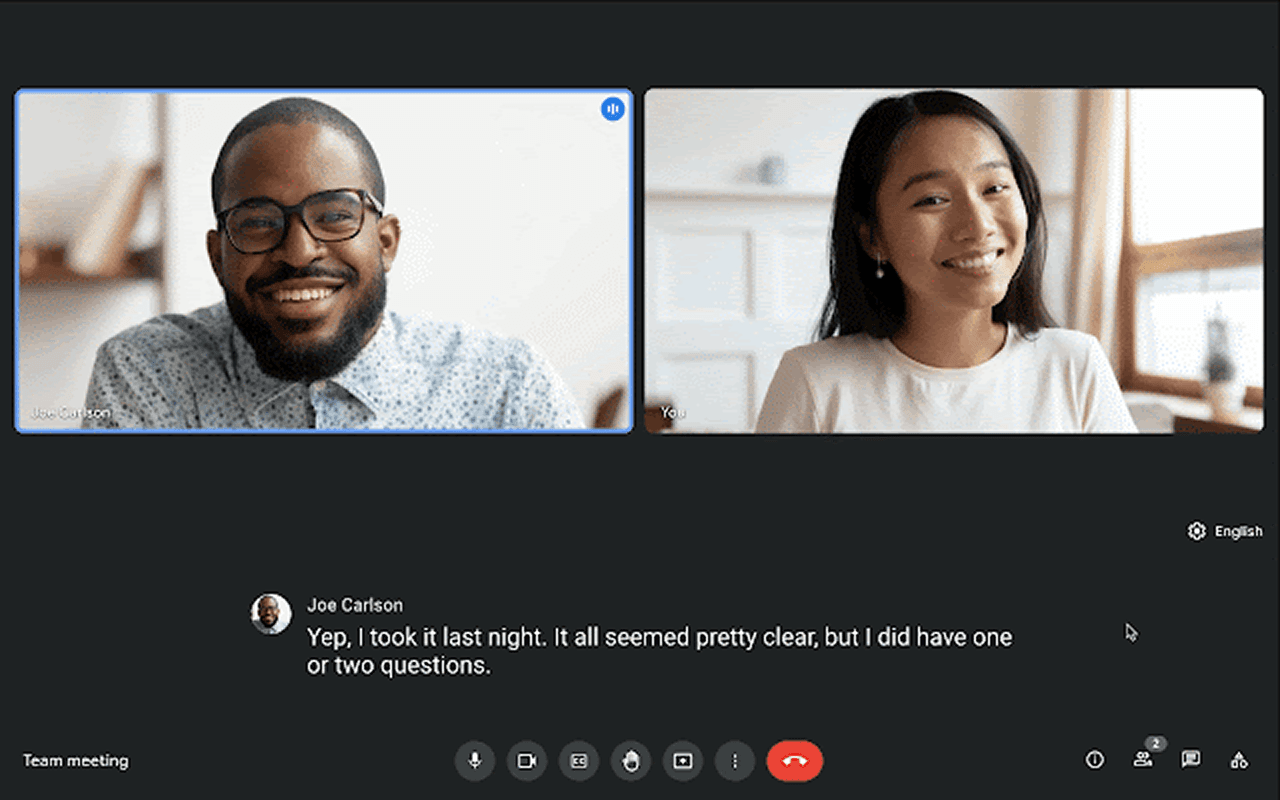
2026 Guide: Google Meet Live Translation & AI Voice Interpretation
Learn how Google Meet live translation and AI voice interpretation work in 2026, including plans, limitations, and a cross-platform alternative like Deeptrue.
2026 Guide: Microsoft Teams Live Translation & AI Voice Interpretation
Explore real-time translation and AI voice interpreting in Microsoft Teams. Compare Deeptrue, available on Zoom, Teams, Meet, and Webex.
Stay in the loop
Get the latest Deeptrue updates and industry insights delivered to your inbox.