
Zoom Captions: Setup, Chinese Translation and Button Fixes

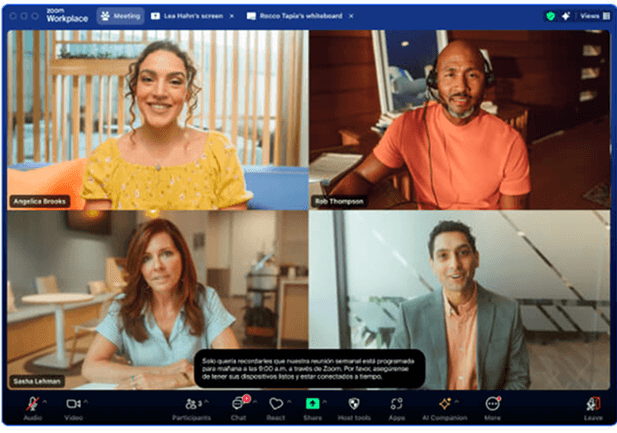
To turn on Zoom captions, select Show captions in the meeting toolbar, checking More if it is hidden. To read Chinese translations of English, Japanese, or Korean speech, you need translated captions—not just a different recognition language—and the host must have the feature enabled. If a control is missing, check the participant, host, and administrator steps below before assuming you need a subscription. (support.zoom.com)
Official documentation checked November 29, 2026. This guide is desktop-first; the mobile route is labeled separately. Zoom eligibility and settings below reflect the documentation available as of November 2026.
Do you need Zoom captions, Chinese translation, or translated speech?
Start with what you want to receive or send:
Your goal | Workflow | Key distinction |
|---|---|---|
Read what someone says in the original language | Automated captions | Recognition language should match the speech. |
Read English, Japanese, or Korean speech in Chinese | Translated captions | Keep recognition matched to the speaker; choose Chinese as the translated output. |
Speak Chinese and send translated audio to others | A voice-translation workflow, such as Deeptrue Interpreter Mode | This changes outgoing audio, not just the text you see. |
Recognition language and translation language are different settings. For an English lecture, do not set the recognition language to Chinese simply because you want Chinese text. Zoom’s caption-viewing guide distinguishes speech recognition from the translated-output workflow in its translation guide. (support.zoom.com)
How do you show captions as a participant?
What are the desktop steps?
- Join the meeting and find Show captions in the toolbar.
- If you cannot see it, open More and look there.
- Select Show captions.
- Use the adjacent arrow to inspect Caption language, the speech-recognition setting. It should match the language actually being spoken.
- Read any prompt before changing recognition language. Zoom’s host and participant documentation differs on how source-language selection behaves, so do not assume a change is always personal or always shared. (support.zoom.com)
If you see Request captions instead, activation is restricted. Send the request; where offered, an optional checkbox also requests translation. The host or an authorized co-host can approve or decline. Not every meeting requires a request, and this route is not available when captions are completely disabled. These controls are documented in Zoom’s participant instructions. (support.zoom.com)
Mobile only: the documented viewing route is More → Show CC. Host restrictions still apply. (support.zoom.com)
Which Chinese menu labels should you look for?
Zoom documents the following terms, but menu layouts can differ between desktop and mobile:
English control or purpose | Documented Chinese terminology | Where it helps |
|---|---|---|
More | 更多 | Finding additional meeting controls |
Show/hide captions | 显示/隐藏字幕 | Identifying the caption display control |
Captions and translation | 字幕和翻译 | Documented in the mobile controls section; not a verified desktop path |
Accessibility → Captions | 无障碍访问 → 字幕 | Desktop caption presentation settings |
Font size | 字号 | Making captions easier to read |
Automatically show captions when available | 在会议和网络研讨会中始终显示字幕 | A desktop display preference, not permission to activate captions |
Sources: Zoom’s Chinese meeting-controls guide and Chinese desktop-settings guide. English descriptions in the table explain the controls; they are not all exact English button labels. (support.zoom.com)
The automatic-display preference works only when captions are available. It cannot override a host restriction or administrator lock. Where an exact Chinese equivalent is not verified here, use the documented English label, such as Request captions or Caption language, when asking for help. (support.zoom.com)
What must hosts and administrators enable?
Ordinary automated captions do not require the translated-caption add-on: Zoom’s license comparison lists automated captions for both Basic and Pro meetings. Availability still depends on settings and meeting policy. (support.zoom.com)
What can each role change?
Role | Where to act | What to check |
|---|---|---|
Account administrator | Account Management → Account Settings → Meeting → In Meeting (Advanced) → Automated captions | Enable captions, permit recognition languages, choose who may start captions, and review locks. |
Host configuring their own meetings | Web portal profile menu → Settings → Meeting → In Meeting (Advanced) → Automated captions | Enable the feature if the organization permits changes. |
Participant viewing someone else’s meeting | In-meeting Show captions or Request captions | Display captions or ask the host to activate them. Your own account settings do not configure another host’s meeting. |
Account or group settings can be locked. If a host’s setting is grayed out, an administrator must resolve it. Administrators can also restrict activation to hosts, or hosts and co-hosts. See Zoom’s automated-caption configuration guide. (support.zoom.com)
Inside the meeting, hosts can approve caption requests. They can also disable captions for everyone through Host caption control settings, as described in Zoom’s host-management guide. (support.zoom.com)
Message to send the host:
Could you enable automated captions for this meeting? If translated captions are available, please also allow Chinese (Simplified) output.
Simplified Chinese version:
可以为这场会议开启自动字幕吗?如果支持翻译字幕,也请允许翻译为中文(简体)。谢谢!
How do you translate English, Japanese, or Korean speech into Chinese?
Eligibility check — November 2026: Zoom’s viewing guide requires the host to belong to a Zoom Workplace Business Plus, Enterprise Essentials, Enterprise Plus, or Enterprise Premier account, or have the Zoom Translated Captions add-on assigned. Both automated captions and translated captions must be enabled. An attendee’s own subscription does not, by itself, activate translation in another host’s meeting. Source: Zoom translated-caption requirements. (support.zoom.com)
What should the host prepare?
- Open the web portal’s meeting settings. The English guide routes administrators through Admin Center → Settings → Meeting, and individuals through My account → Settings → Meeting.
- Under In Meeting (Advanced), enable automated captions first, then translated captions.
- Open Edit translation languages and confirm the needed source-to-output pairs are enabled. (support.zoom.com)
Zoom’s English configuration guide and Chinese configuration guide use different navigation. The Chinese administrator path is 账户管理 → 账户设置 → 会议 → 会议中(高级) → 翻译字幕; the individual path begins 设置 → 会议. Its language-pair controls are 编辑翻译语言, 发言语言, and 翻译为. Follow the layout shown in your portal rather than expecting both guides to match exactly. (support.zoom.com)
What should the participant select?
- Show captions, then open the caption button’s arrow.
- Check that recognition matches the actual speech.
- Under Captions and translation, enable Translation.
- Choose Chinese (Simplified) as the target language and save.
Each participant can select their own translated output from the host-enabled pairs, according to Zoom’s translated-caption viewing instructions. (support.zoom.com)
Meeting example | Speech-recognition language | Desired translated output |
|---|---|---|
English lecture | English | Chinese (Simplified) / 中文(简体) |
Japanese seminar | Japanese | Chinese (Simplified) / 中文(简体) |
Korean team meeting | Korean | Chinese (Simplified) / 中文(简体) |
These examples follow Zoom’s documented language support, but the host’s enabled pairs still determine what you can select. Do not assume every listed language translates into every other language. (support.zoom.com)
Chinese (Traditional) / 中文(繁体) is a separate output choice. Simplified versus Traditional is a script choice; it is not a Cantonese-support setting. (support.zoom.com)
For purchasing, Zoom’s current configuration guide directs buyers to Sales for pricing. Keep that separate from troubleshooting: see our translated-caption cost and guest-access guide for the licensing discussion. (support.zoom.com)
Why are captions or Chinese translation missing?
Work from the visible symptom. A missing control is not always a subscription issue.
Symptom | Possible cause | Next action | Who can fix it |
|---|---|---|---|
No caption button in the main toolbar | Control may be under More | Open More and look for Show captions. | Participant |
Request captions appears, but no text follows | Activation requires approval | Send the request and ask the host to review it. | Host or permitted co-host |
Neither display nor request controls are available | Captions may be disabled for the session | Ask the host to check Host caption control settings and caption availability. | Host; administrator if locked |
A caption setting is grayed out | Account or group lock | Ask the relevant administrator to review the policy. | Administrator |
Original-language captions work, but translation does not | Host eligibility or translated-caption setting may be missing | Confirm the eligibility box and both caption settings. | Host or administrator |
Chinese output or the needed source language is unavailable | Required language or pair may not be enabled | Review permitted recognition languages and Edit translation languages. | Host or administrator |
Captions misrecognize otherwise audible speech | Recognition language may not match the speaker | Inspect Caption language and follow the prompt before changing it. | Participant or host, depending on controls |
Translation is unavailable in another company’s meeting | Host-side eligibility still matters; your organization may also restrict external-meeting features | Ask the host about eligibility and your own administrator about external-meeting restrictions. | Host and/or your administrator |
The table follows Zoom’s participant controls, administrator settings, host controls, and translation configuration. (support.zoom.com)
For external meetings, the host-side point follows from Zoom’s eligibility requirements. Separately, Zoom explicitly documents that administrators can restrict automated-caption use in external or all meetings. Check with the relevant administrator rather than trying to bypass policy. (support.zoom.com)
University account? Zoom notes that some higher-education and healthcare accounts may need their Account Executive to enable translation access. That does not mean all education accounts include—or exclude—the feature. See the configuration guide’s prerequisites. (support.zoom.com)
Another possible conflict: automated captions cannot run while manual captioning is enabled for the session. Ask the host to review the captioning workflow rather than disabling an intentional accessibility arrangement without discussion. (support.zoom.com)
Can you read Chinese captions on your own computer with Deeptrue?
Deeptrue is a separate desktop app that works alongside Zoom; it does not unlock Zoom’s native caption controls. It captures audio played by other applications on the computer, excluding Deeptrue itself, and displays original and translated sentences in a semi-transparent overlay through Live Translated Caption. No meeting bot needs to be invited.
To set it up:
- Install Deeptrue on macOS 13+ or Windows 10+.
- Join Zoom with the meeting’s incoming audio playing on that computer.
- Set your own language to Simplified Chinese and the other side’s language to English, Japanese, or Korean.
- Use Live Translated Caption to follow the sentences and their translations over the meeting screen.
Only the person seeking translation runs Deeptrue. Other participants install nothing and need no account. Deeptrue offers Simplified Chinese and Traditional Chinese as used in Taiwan; Cantonese is not offered.
Before the meeting, check incoming audio and both language selections. Pause unrelated audio sources, since Deeptrue captures other applications’ playback. Use the app only where your meeting and organization policies permit it.
How can you speak Chinese and send translated audio?
Reading translated captions and sending translated speech are separate workflows. In Interpreter Mode, you speak in your own language and Deeptrue delivers the translation in a natural AI-generated voice through its virtual microphone, Deeptrue Microphone.
- Set your language and the other side’s language in Deeptrue, then use Interpreter Mode.
- In Zoom, open the arrow beside the audio control and select Deeptrue Microphone as the microphone. Zoom documents microphone selection in its meeting-controls guide. (support.zoom.com)
- Before the real meeting, ask another person to confirm they can hear the translated audio.
You do not need this microphone change merely to read Deeptrue captions. It is the outgoing-audio step for Interpreter Mode.
If this workflow fits your needs, download Deeptrue. The Free plan includes 60 minutes total, with up to 60 minutes per session—not an allowance that renews each month.
What should you check before the meeting?
- Role: Are you the host, an administrator, or a guest?
- Languages: Does recognition match the speech, and does translated output match what you want to read?
- Availability: Can you show captions, or must the host approve a request?
- Translation path: Does the host meet Zoom’s eligibility requirements, and are the language pairs enabled, or will you use an approved separate desktop tool?
- Audio: Can you hear incoming speech? If sending translated audio, is the correct microphone selected?
FAQ
How do I turn on Zoom captions as a participant?
Select Show captions, checking More if necessary. If you see Request captions, send a request to the host. Use the participant steps above; changing your own account settings will not configure someone else’s meeting. (support.zoom.com)
Does changing Caption language translate the meeting?
No. Caption language sets speech recognition. For Chinese translation, keep recognition matched to the speaker, then enable Translation and choose Chinese as the output, as described in the Chinese-translation section. (support.zoom.com)
Can Zoom translate English, Japanese, or Korean into Chinese without changing everyone else’s output?
Yes, subject to host eligibility, enabled settings, and the relevant language pairs. Your translated-output choice is individual. Do not assume the source-language control behaves the same way; inspect its prompt before changing it. (support.zoom.com)
Are ordinary captions free, and are translated captions different?
Zoom lists ordinary automated captions for Basic and Pro meetings, subject to settings and policy. Translated captions have separate host-side eligibility. An attendee’s subscription alone does not activate translation in another company’s meeting; that attendee’s organization may also restrict external-meeting features. (support.zoom.com)
Can I read Chinese captions without changing the host’s Zoom settings?
Deeptrue provides a separate caption overlay from audio played on your supported computer, without changing Zoom’s native caption settings. Follow the desktop setup above and confirm that your organization permits the workflow. A separate app does not give you permission to bypass meeting or organizational policies.
Related posts
Zoom Translated Captions Add On Cost: Plans and Guest Access
Check Zoom translated captions add on cost, host eligibility, Japanese and Korean support, and what to verify before buying.
Google Meet Translated Captions: Setup for Your Own Screen
Set up Google Meet translated captions for your own screen. Check eligible plans, guest access, language settings, and fixes for missing options.
Can Teams Translate Chinese to English? Captions and Voice
Can Teams translate Chinese to English? Learn caption and voice options, licensing rules, Zoom settings, and how to reply to suppliers in Chinese.
Stay in the loop
Get the latest Deeptrue updates and industry insights delivered to your inbox.