
Zoom Translated Captions Add On Cost: Plans and Guest Access

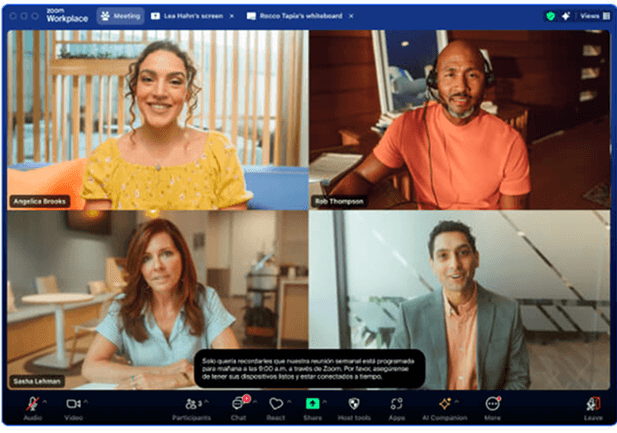
The Zoom translated captions add on cost is listed as $5 per user per month in Zoom’s February 2024 article, but that dated figure is not a confirmed November 2026 purchase price; current caption help documentation directs buyers to Sales. For native translated captions, the host must have an eligible plan or assigned add-on—participants choosing their own display language is a separate matter.
Official documentation checked November 26, 2026. All prices below are in USD.
What is the Zoom translated captions add on cost?
Zoom’s February 1, 2024 article lists a translated-caption add-on price of $5 per user per month for a paid Zoom license. Its current configuration documentation, however, tells customers to contact Sales for pricing and purchase information. Treat $5 as a historical budgeting reference, not a current quote.
Translated captions and Voice Translator have different documented licensing requirements:
Feature | Required entitlement | Verified price information | Billing basis | Confirm before buying |
|---|---|---|---|---|
Translated captions | Host on Zoom Workplace Business Plus, Enterprise Essentials, Enterprise Plus, or Enterprise Premier; alternatively, Zoom Translated Captions add-on assigned to the host | $5/user/month published in February 2024; current help directs buyers to Sales | Historical add-on price was per user/month | Current package and rate, eligible base plan, assignment and billing terms |
AI Voice Translator | Assigned Live Translation add-on or ZoomMate license, plus feature enabled | Current translation-specific purchase price not confirmed in this review | Confirm licensing and usage charges; advanced ZoomMate AI features incur AI Credit costs | Included usage, credit consumption, billing cadence and assigned-user requirements |
The entitlement details come from Zoom’s translated-caption requirements and Voice Translator requirements. Different names in these documents do not, by themselves, establish what a current purchase package includes.
For budgeting, separate any required base subscription from the applicable translation entitlement. The US Zoom Workplace pricing page lists Pro at $16.99 per user per month with monthly billing, as of November 26, 2026. That is a base-plan price—not a translation-inclusive total. Adding the old $5 figure would not establish a verified current total.
Before purchasing: confirm the translation add-on’s current price and billing terms directly with Zoom. A current checkout price was not confirmed in this review, nor were regional quotes, voice-translation allowances or per-minute AI Credit consumption.
Which Zoom translation feature are you buying?
Start with the output you need, rather than the word “translation.” As of November 2026, these are distinct workflows:
Feature | What participants receive | Purchasing distinction |
|---|---|---|
Ordinary automated captions | Same-language text of speech | Listed for Basic, Pro, Business and Enterprise; this does not establish translation eligibility |
Translated captions | Text translated into a selected language | Requires an eligible host and enabled caption settings |
AI Voice Translator | AI-generated translated speech | Has separate assigned-license and feature requirements |
Human Language Interpretation | A person’s interpretation through a language-specific audio channel | Host designates interpreters; attendees choose a channel |
Zoom’s pricing comparison distinguishes ordinary captions from translation. Its Voice Translator guide describes synthesized speech, while its Language Interpretation guide describes the human-interpreter workflow.
A paid Zoom account does not automatically include every translation feature. In particular, the documented caption-eligible plans are Zoom Workplace Business Plus, Enterprise Essentials, Enterprise Plus and Enterprise Premier—not simply “Business or higher.” A host can alternatively qualify through an assigned Zoom Translated Captions add-on.
Can I turn on translated captions only for myself?
Yes, within an eligible, enabled meeting, you can choose your own translated-caption language. That personal display choice does not remove the host’s entitlement requirement. Zoom documents both conditions in Viewing captions in another language.
For example, you may read an English-speaking customer’s presentation in Japanese while a colleague reads it in Korean, provided the meeting qualifies and the relevant language pairs are available.
Meeting situation | What an attendee can do | Who needs to act? |
|---|---|---|
Eligible host; captions and translation enabled | Select a personal translated-caption language | Attendee selects the display language |
Eligible host; caption activation restricted, but not completely disabled | Request captions and optionally translation | Host, or a co-host depending on settings, reviews the request |
Host lacks the required entitlement | Personal display settings cannot supply the missing host eligibility | Host or account administrator checks licensing |
Attendee considers buying an add-on for a customer’s meeting | Do not assume that purchase makes the meeting eligible | Confirm the host’s entitlement before purchasing |
The last row is an implication of Zoom’s documented host requirement: assigning an entitlement only to the attendee does not satisfy a requirement placed on the host. It does not mean guests can never use translated captions.
Also, “only for myself” is not a promise of invisible use. If activation is restricted, a caption request can notify the host or co-hosts, depending on settings, and they may approve or decline it. Personal language selection is not a privacy guarantee.
Are Japanese and Korean supported for captions and voice?
Japanese and Korean are listed for translated captions, but Korean is not listed for Voice Translator in the documentation checked November 26, 2026. Do not use a caption-language list to decide whether translated speech will work.
Language | Zoom translated captions | Zoom Voice Translator |
|---|---|---|
English | Listed | Listed |
Japanese | Listed | Listed |
Korean | Listed | Not listed as of November 26, 2026 |
Zoom maintains separate caption-language documentation and a Voice Translator language list. Caption documentation says most listed languages can translate between one another, with exceptions. Check the specific pair rather than assuming every language and dialect works in every direction.
Input language and translation language do different jobs:
- For an English presentation you want to read in Japanese, the spoken input is English and the translated display is Japanese.
- For a Japanese–Korean business call, confirm the required speaking/translation pairs are available and enabled. Changing the input language to Korean does not, by itself, translate Japanese speech into Korean.
For translated output, Zoom’s participant instructions give this short path:
- Open the arrow beside Show Captions.
- Under Captions and translation, enable Translation.
- Choose the target language and save.
What does Zoom Voice Translator require, and who hears it?
As of November 26, 2026, Zoom’s Voice Translator help page lists these requirements:
- A Basic, Pro, Business or Enterprise account.
- An assigned Live Translation add-on or ZoomMate license.
- Voice Translator enabled.
- Zoom version 7.0.0 or later on Windows, macOS, Android or iOS.
Basic appearing in the account list does not mean voice translation is free. The assigned-license requirement still applies, and Zoom states that advanced ZoomMate AI features incur AI Credit costs.
Account owners and administrators can manage and lock Voice Translator under Meeting > In Meeting (Advanced). Zoom also documents group and personal settings in its administrator guide.
On desktop, the documented meeting path is More > Voice Translator. Speaking and listening languages are configured during the meeting, with controls for balancing original and translated audio.
Is listening to translation different from translating my own voice?
Yes. Listening settings concern the translated audio you hear. Outgoing translation concerns speech delivered to other participants.
Zoom’s October 19, 2026 release notes describe Translate My Voice, which sends translated speech to other participants. Listeners do not need the Voice Translator add-on merely to hear that speech, but need it to adjust Voice Translator settings such as language and volume. A comparison claiming that Zoom offers only text translation would therefore be outdated.
Do not apply the translated-caption host rule to Voice Translator: the documented requirements are different. Equally, do not assume unrestricted use in every customer-hosted meeting—the reviewed documentation does not comprehensively resolve all cross-account policy cases. Confirm the intended externally hosted workflow before purchasing.
Why are translated captions missing or incorrect?
Check eligibility before repeatedly changing your display language. These six availability checks—and one accuracy check—follow Zoom’s documentation as of November 26, 2026.
Symptom | Check | Responsible person | Next action |
|---|---|---|---|
Translation is unavailable in the meeting | Does the host have an eligible plan or assigned caption add-on? | Host/account administrator | Verify the host’s entitlement |
Captions or translation are switched off | Are automated captions enabled first, followed by translated captions? | Host/account administrator | Review Meeting > In Meeting (Advanced) |
Personal setting is grayed out | Is an account or group setting locked? | Administrator | Review the lock and permitted settings |
Your target language is missing | Has the speaking/translation pair been excluded? | Host/account administrator | Review available language pairs |
You cannot activate captions | Is activation restricted rather than captions completely disabled? | Attendee, then host or authorized co-host | Request captions and optionally translation; wait for approval |
Controls are missing on your device | Is the client supported and current? | Attendee/IT | Check Zoom’s listed clients and update as needed |
Captions appear but are wrong | Does input language match the actual speech? Is audio clear? | Speaker/host, with attendee feedback | Correct input language first; then check noise, speech clarity and translation target |
Zoom’s configuration guide covers prerequisites, locks and language-pair selection. All supported pairs are enabled by default, but hosts can restrict the selection.
The caption-viewing requirements list Windows and macOS desktop apps at Zoom’s global minimum version or later, plus the Zoom web app. Do not assume Voice Translator’s mobile support also establishes translated-caption support on the same device.
If activation is restricted, follow Zoom’s request-and-approval guidance. If captions are inaccurate, its automated-caption guidance identifies mismatched input language, background noise, speech clarity, vocabulary and dialect as relevant factors.
When is a translation app on your own computer an alternative?
A desktop app is worth considering when you attend other organizations’ meetings and want your own translation setup, or regularly move between meeting platforms. If your host already provides suitable native translation, using that feature may be the simpler choice.
Based on its November 2026 product information, Deeptrue runs on macOS 13+ and Windows 10+, alongside Zoom, Google Meet, Microsoft Teams and Webex desktop meeting apps. No meeting bot has to be invited. Only the person wanting translation runs Deeptrue; other participants install nothing and need no account.
For text, Live Translated Caption displays the original spoken sentence and its translation in a semi-transparent overlay over the meeting screen. This is a separate desktop workflow, not an entitlement added to the host’s Zoom account. See the Deeptrue caption workflow for Zoom.
For speaking, Interpreter Mode translates your speech into a natural AI-generated voice:
- Run Deeptrue alongside the meeting app and use Interpreter Mode.
- Select Deeptrue Microphone as the microphone in the meeting app.
- Speak in your own language; Deeptrue delivers the translated voice through that virtual microphone.
Deeptrue supports 31 languages, including English, Japanese and Korean. The Deeptrue interpretation workflow for Zoom explains this speaking option; the virtual-audio troubleshooting guide is relevant if Deeptrue Microphone setup needs attention, not if Zoom’s native caption entitlement is missing.
Do not assume that a desktop app processes everything offline. Check your organization’s policy before using any translation tool.
What does Deeptrue cost?
These are Deeptrue’s USD prices with monthly billing, from its November 2026 product information:
Plan | Price | Included minutes | Per-session limit |
|---|---|---|---|
Free | $0 | 60 minutes | Up to 60 minutes |
Pro | $29/member/month | 300 minutes | Up to 100 minutes |
Business | $49/member/month | 800 minutes | No per-session limit |
No per-session limit does not mean unlimited included usage. Business includes 800 minutes. See Deeptrue pricing for plan details.
What should you confirm before buying?
Use this checklist before assigning licenses or asking a customer to change meeting settings:
- Role: Are you hosting, attending, or buying for several hosts?
- Output: Do you need translated text, incoming translated audio, outgoing translated speech, or a human interpreter?
- Languages: What exact speaking and output pair do you need?
- Device: Will you use a desktop app, web app or mobile client?
- Entitlement: Who must receive the license, and which administrator can restrict it?
- Quote: Ask the vendor to confirm the package, base-plan requirement, assigned-user basis, billing cadence, included usage and any credit charges.
For native captions, start with the host’s eligibility—not a shopping list of add-ons for every attendee. For Voice Translator, verify its separate licensing and external-meeting workflow. If the service required is human interpretation, arrange interpreters rather than treating automated text or speech as the same service.
If an individual desktop workflow fits your needs, you can download Deeptrue and use the Free plan’s 60 included minutes.
FAQ
Does every participant need the Zoom translated captions add-on?
No. Zoom documents host eligibility, while participants in an eligible, enabled meeting can independently choose their translated-caption language. Do not infer that every attendee needs an add-on.
Can buying the add-on let me translate any meeting I join?
Not on the strength of that purchase alone. For native translated captions, the documented requirement applies to the host. An attendee-only purchase does not satisfy that requirement. Voice Translator has separate requirements, so verify its licensing and external-meeting restrictions independently.
Does the translated captions add-on include voice translation?
Confirm the exact package before buying. The caption documentation names the Zoom Translated Captions add-on; Voice Translator documentation specifies an assigned Live Translation add-on or ZoomMate license. Those different names alone do not establish whether your quoted package includes both features.
Does Zoom support Korean translation?
Korean is listed for translated captions. It is not in the Voice Translator supported-language list checked November 26, 2026. Confirm the exact language pair and required output before buying.
Can one desktop translation app work across Zoom, Teams, Meet and Webex?
Yes. Deeptrue works alongside those desktop meeting apps and provides a translated-caption overlay or translated speech through Deeptrue Microphone. That can suit a multi-platform workflow, but it does not replace checking each organization’s rules for translation tools.
Related posts
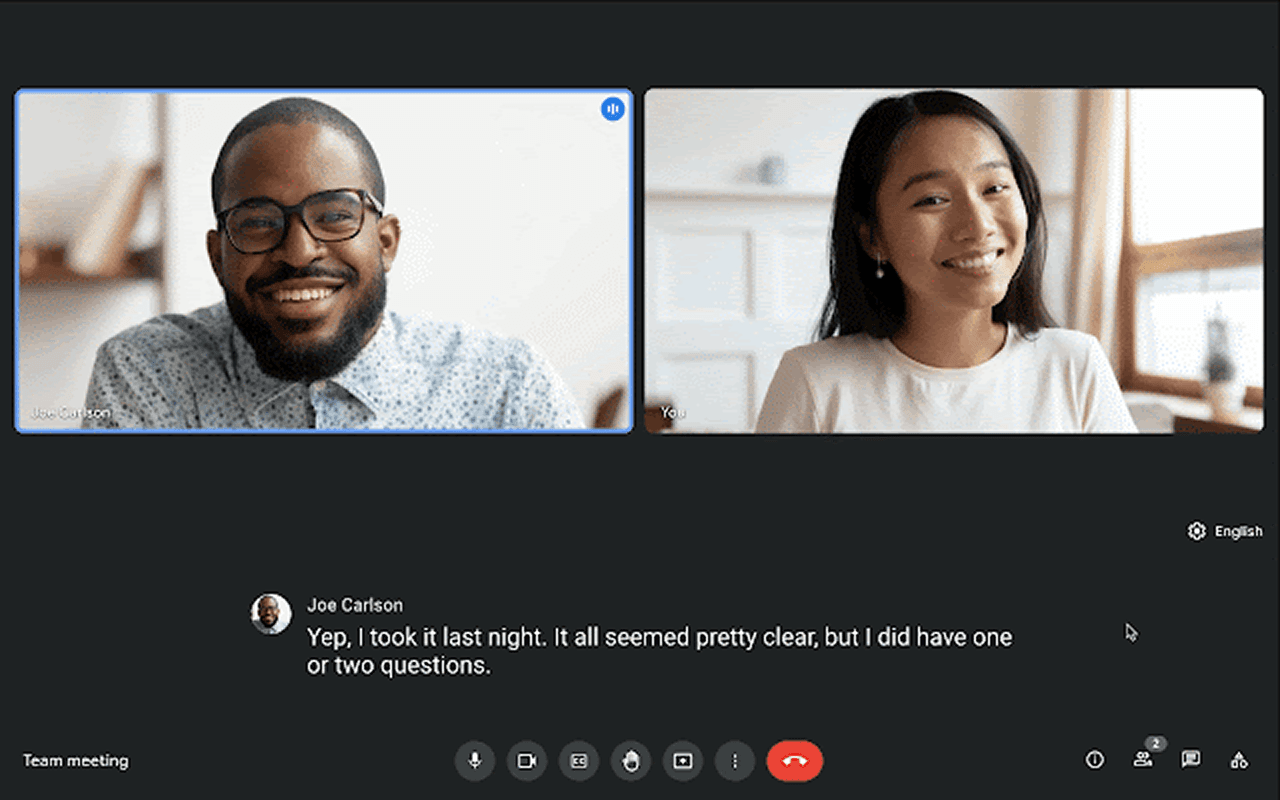
Google Meet Translated Captions: Setup for Your Own Screen
Set up Google Meet translated captions for your own screen. Check eligible plans, guest access, language settings, and fixes for missing options.

Simultaneous Interpretation Cost for Online Meetings
Budget online interpretation using published rates, team minimums and additional fees. Learn when to hire professionals and when to test AI support.

Teams Interpreter Agent License: Copilot and Guest Rules
Check Teams Interpreter agent license requirements, guest restrictions, translated caption access, and costs before buying Premium or Copilot.
Stay in the loop
Get the latest Deeptrue updates and industry insights delivered to your inbox.