

Deeptrue interprets your online meetings live and writes AI meeting notes when they end. With the Deeptrue connector, Claude can read those meetings, so you can ask about them in your own words: what was decided and who said it, who promised what by when, or the exact line in the transcript with its translation.
The connector is read-only. Claude can read your meetings, but it cannot change, share or delete anything in Deeptrue.
Before you start
- A Deeptrue account. The connector works on every Deeptrue plan.
- Meetings held in the Deeptrue desktop app. Claude reads the transcripts and notes that Deeptrue saved, so meetings without a saved transcript don't appear. The meeting notes guide shows where transcript saving is set.
- A Claude account.
Connect Deeptrue in Claude
- In Claude, open Settings (Customize in some versions) and go to Connectors.
- Choose Add custom connector, name it Deeptrue and enter this URL:
https://api.deeptrue.org/mcp - Add the connector and connect it. Claude opens the Deeptrue website.
- Sign in to Deeptrue the way you usually do.
- Check the consent screen. It shows which app is asking, the address you will be sent back to, the account you are signed in with and what the app will be able to read. If everything looks right, choose Allow.
- You are taken back to Claude, and Deeptrue is connected.
Menu names in Claude can differ a little between versions. Once Deeptrue is listed in Claude's connector directory, you can also find Deeptrue there and connect it without entering the URL.
What Claude can read
- Meetings you can see in Deeptrue: your own meetings and the meetings colleagues shared with you
- AI meeting notes: the summary, decisions with quotes in the original language, and more. If a quote can no longer be found in the transcript (for example after the notes were edited), it is marked as unverified, so Claude can tell you to check it.
- Transcripts, line by line, with the translation
- Action items: your own and what the other side promised, with due dates
- Customer and supplier accounts, if your team uses accounts
- Your glossary: personal, team and project terms with their preferred translations
What is never shared:
- Practice mode meetings are never shared.
- Your speaking coaching and scores stay in Deeptrue.
- If a team admin turns off external integrations, nothing from that team is shared.
What to ask
- "Find where we talked about the lead time with Acme."
- "What meetings did I have last week?"
- "Summarize the decisions from my last meeting with Acme and quote what they said."
- "Show me exactly what Tom said about pricing."
- "What did customers promise to send me this month?"
- "Brief me on Acme before tomorrow's call."
- "Use our glossary to translate this e-mail to Japanese."
Claude looks up what it needs in Deeptrue and writes the answer.
Disconnect
You can disconnect at any time, in either place:
- In Deeptrue: on the Deeptrue website, open Settings > Connected apps and choose Disconnect next to Claude.
- In Claude: remove the Deeptrue connector under Connectors.
Access ends at once. A connection also ends by itself 180 days after you allowed it; to keep using Deeptrue in Claude, connect it again.
When someone is removed from a team, they immediately lose access to that team's shared meetings, through Claude as well.
Privacy
Deeptrue does not call an AI model for the connector: it only hands over the data you allowed. Claude does the reasoning and writes the answers, and what it reads is handled under Anthropic's terms and privacy policy. For details, see the section "Integrations you connect" in our privacy policy.
Need help?
E-mail support@deeptrue.org.
Related
Related posts
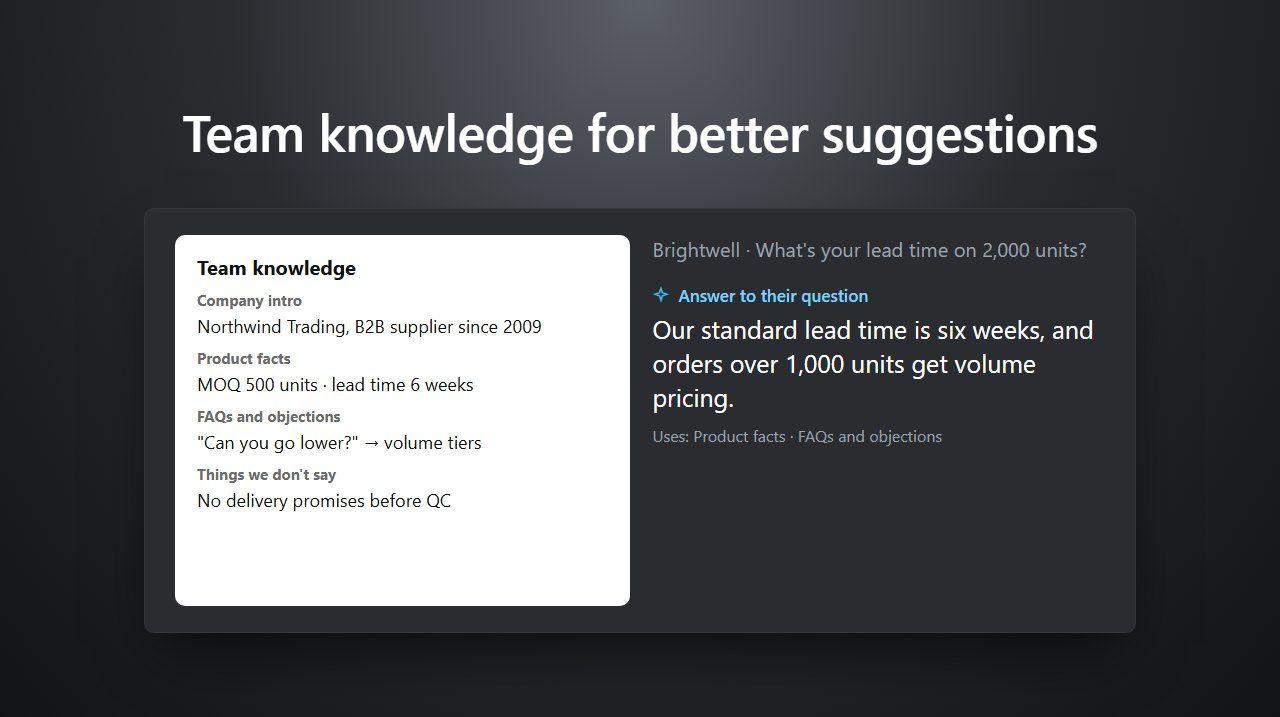
Set up team knowledge so suggestions use your company's facts
On the Business plan, give Deeptrue your product facts, agreed answers and rules, so everyone's meeting suggestions stay accurate. Step-by-step setup.
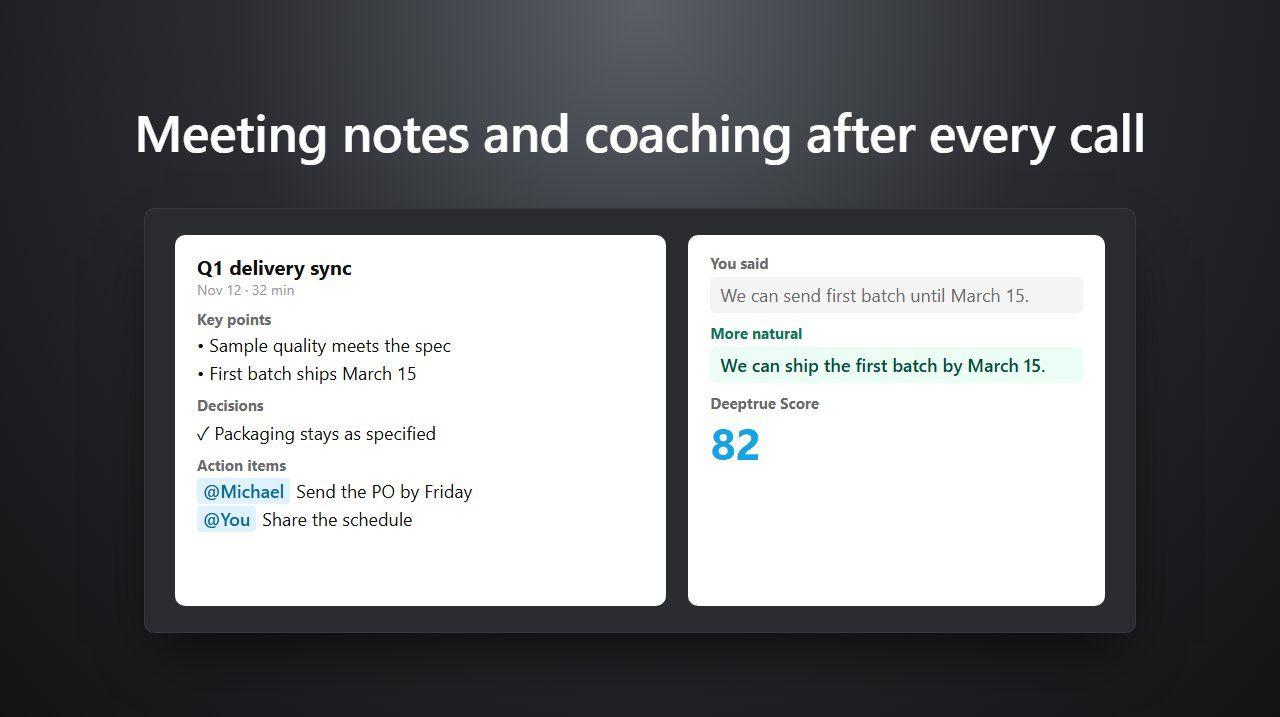
Get meeting notes and coaching after every meeting
After every meeting, Deeptrue writes notes with decisions and action items and coaches what you said. Where to find the report and how to share it.
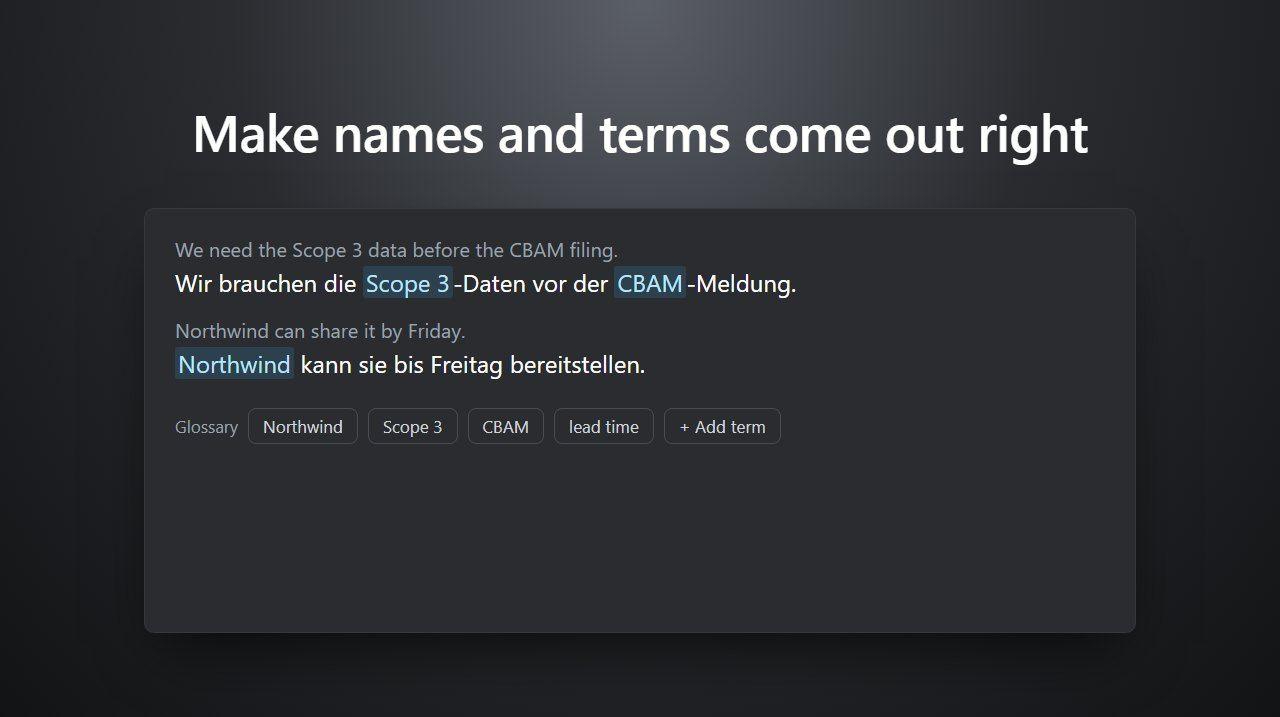
Make names and terms come out right with the glossary
Add client names, product names and jargon to the Deeptrue glossary so captions, translation and suggestions get them right. Personal and team steps.
Virtual Audio Driver Troubleshooting Guide
This guide helps you resolve issues when the virtual audio driver installation fails during setup.
Stay in the loop
Get the latest Deeptrue updates and industry insights delivered to your inbox.