

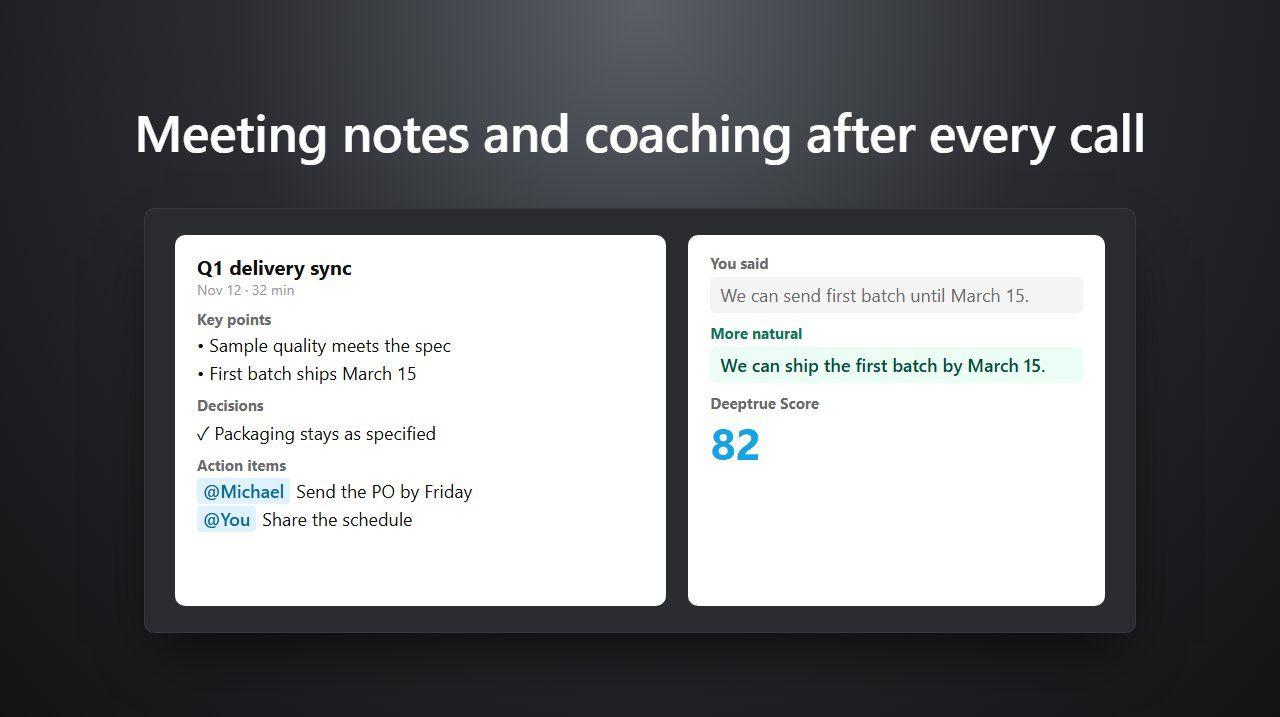
When a meeting ends, Deeptrue turns the transcript into a meeting report: notes with decisions and action items, coaching on the sentences you said, phrases worth learning, and your Deeptrue Score. Here is where to find it and what each part does.
Before the meeting: keep transcript saving on
The report is written from the saved transcript, so transcript saving needs to be on. It is on by default. To check:
- In Deeptrue, click ⋮ (More Options) and choose Settings.
- Open Advanced and make sure Save Meeting Transcripts is on.
If you switch it off, no transcript is kept and no report is written. Either way, meeting audio is transcribed live and discarded right away; it is never recorded, and your meeting data is never used to train AI models. Very short meetings don't get a report.
After the meeting: open the report
- Click ⋮ (More Options) and choose Meeting Transcripts. The Meetings window opens.
- Under My meetings, click the meeting. The search box finds meetings by title or by what was said.
- While the report is being written, you see Writing your meeting report…. It usually takes less than a minute, and you can keep using Deeptrue meanwhile.
The report has four tabs.
Meeting notes
- Summary
- Key discussion points, grouped by topic
- Decisions
- Action items, each with an owner (you, someone else, or unassigned) and a due date when there is one
- Open questions
Notes are written in your language. Use Edit notes to correct anything, Copy notes to paste them into an email or a document, and Write the report again if you want a fresh version.
Insights
- Your Deeptrue Score: how you communicated in the language you practised in this meeting. It combines Clarity (35%), Vocabulary (25%), Engagement (20%) and Fluency (20%). Parts without enough data are left out.
- The change vs your last meeting.
- Figures such as Your talk share, Questions you asked and Filler words.
- What went well and Try next time.
The score is for meetings where you speak a language other than your own, for example English when your own language is Japanese. If you spoke your own language, there is no speaking score, but your notes and talk time are still there.
Transcript review
The whole conversation, with a coaching card under the lines you spoke. Each card is marked Natural, Could be more natural or Worth fixing. Open a card to see a more natural way to say it and a short explanation, then:
- Listen to hear it read aloud;
- Edit wording to adjust it;
- Save to keep the sentence in My phrases.
Coaching covers sentences you speak in English, Japanese, Chinese or Korean.
Learn phrases
Patterns to reuse and Words & phrases picked from the meeting. Each one has a Listen button and Save to my phrases. Everything you save is in the My phrases tab of the Meetings window, where you can filter by language, search, listen again and Mark as practised.
Ask this meeting
Below the report, type a question in Ask anything about this meeting…, for example "What did we agree on the price?" or "What did Ms. Tanaka ask me to send?". Answers use only this meeting's transcript and notes.
Folders and sharing
Click Share at the top of the meeting to open Folder and sharing.
- Folder: choose a folder, or type a name under New folder to create one.
- Who can see the notes: Only me (the default), Project members or Everyone in my team.
Sharing shares the notes and the transcript. Your coaching and score always stay private. Teammates find the meetings you share with them under Shared with me. Projects, which let you share a meeting only with the people working on that client or deal, are part of the Business plan.
Related
Related posts
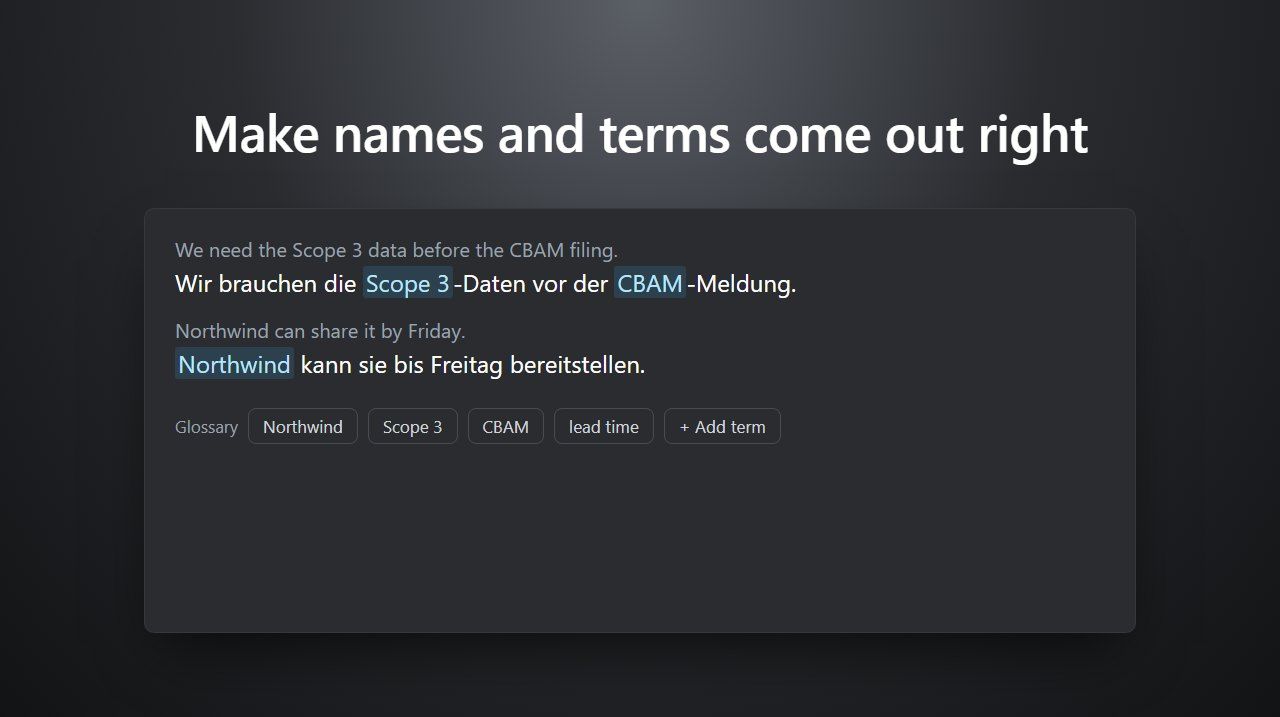
Make names and terms come out right with the glossary
Add client names, product names and jargon to the Deeptrue glossary so captions, translation and suggestions get them right. Personal and team steps.
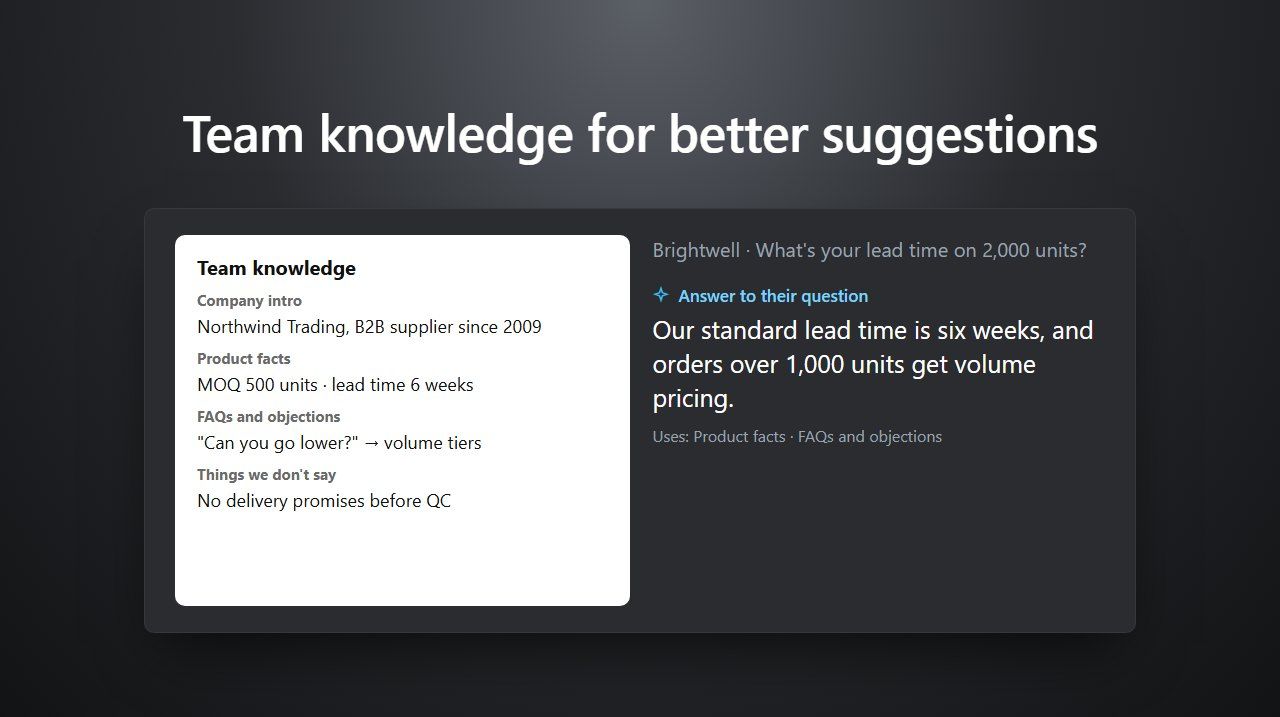
Set up team knowledge so suggestions use your company's facts
On the Business plan, give Deeptrue your product facts, agreed answers and rules, so everyone's meeting suggestions stay accurate. Step-by-step setup.
Stay in the loop
Get the latest Deeptrue updates and industry insights delivered to your inbox.