

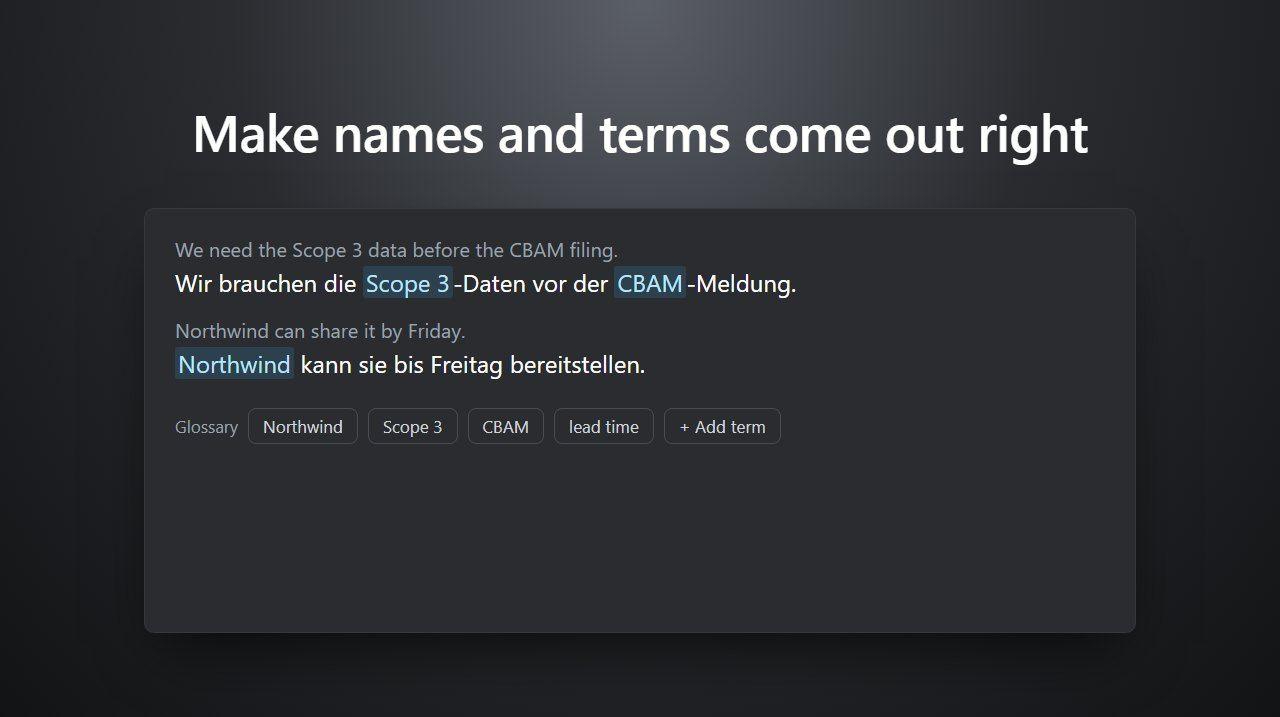
Speech recognition often mishears the words that matter most in a business meeting: a client's company name, your product, an acronym your industry uses every day. The glossary tells Deeptrue which words to expect. Terms in your glossary are listened for in live captions, kept exactly as written in translations, and used in answer suggestions and meeting notes.
What to put in the glossary
- Company and client names, for example Northwind or Takahashi Seisakusho
- Product, service and feature names, yours and your clients'
- Names of people you meet often
- Acronyms and jargon, for example ESG, Scope 3 or CBAM
Everyday words don't need to be added. Start with the ten or twenty words that come out wrong most often, and add more as you notice them.
Add terms in the desktop app
- In Deeptrue, click ⋮ (More Options) and choose Settings.
- Open Glossary in the sidebar.
- Under My terms, type your terms, separated by commas or new lines. For example:
Northwind, ESG, Scope 3, CBAM - Click Add, or press Ctrl+Enter (⌘+Enter on a Mac).
The terms appear in a list. For each one you can also fill in:
- Sounds like (optional): other ways the word may be heard or written, separated by commas. For Northwind, you might add
North Wind, NW. - Note for the AI (optional): a short hint, such as "Client company. Keep the name in English."
- Pin: pinned terms are always listened for first. Pin the few terms that matter most.
A field is saved when you click outside it. To remove a term, click the trash icon.
How many terms you can add
Plan | Glossary |
|---|---|
Free | 30 personal terms |
Pro | 100 personal terms |
Business | 100 personal terms, plus a team glossary of 500 terms |
The line under My terms shows how many you have used, for example "12 of 30 used". Compare the plans on the pricing page.
Share terms with your team (Business)
On the Business plan, the whole team shares a glossary of up to 500 terms. Team admins and editors manage it on the Deeptrue website:
- Log in on the website, open your account menu and choose Settings.
- Under Team workspace, choose Team glossary.
- Under Add terms, enter terms separated by commas or new lines and click Add terms.
- For more control, click Add a term with details. There you can set:
- Aliases: other spellings or abbreviations people use (up to 5);
- Translations: how the term should be written in each language (leave a language out to keep the term as it is);
- Note: a hint for the AI;
- Pin this term: pinned terms get priority in live captions, which can use up to 100 terms at a time.
- To keep the terms for one client or deal together, switch from Team to Project and choose the project. The team glossary and all project glossaries share the 500-term limit.
Everyone in the team sees the shared terms in the desktop app under Settings → Glossary → Team terms. Members can view the team glossary on the website, but only admins and editors can change it. Personal terms stay in each person's desktop app.
Examples
Term | Sounds like | Note for the AI |
|---|---|---|
Northwind | North Wind, NW | Client company. Keep the name in English. |
Takahashi Seisakusho | Takahashi | Client in Osaka. Never translate the name. |
Scope 3 | scope three | Emissions category |
Tips
- Before an important meeting, add the names of the people and companies you will meet.
- If a word keeps coming out wrong, add the wrong version under Sounds like so Deeptrue knows what it means.
- The glossary also helps answer suggestions and live translated captions use the right words.
Related posts
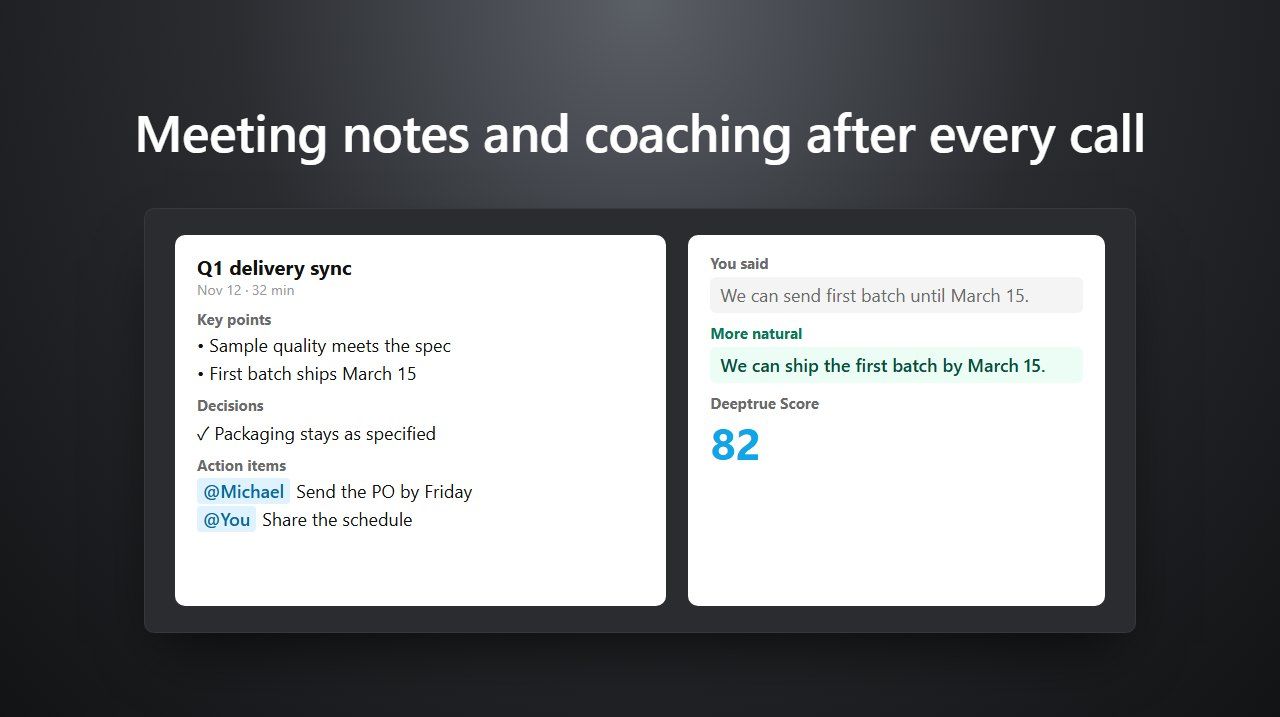
Get meeting notes and coaching after every meeting
After every meeting, Deeptrue writes notes with decisions and action items and coaches what you said. Where to find the report and how to share it.
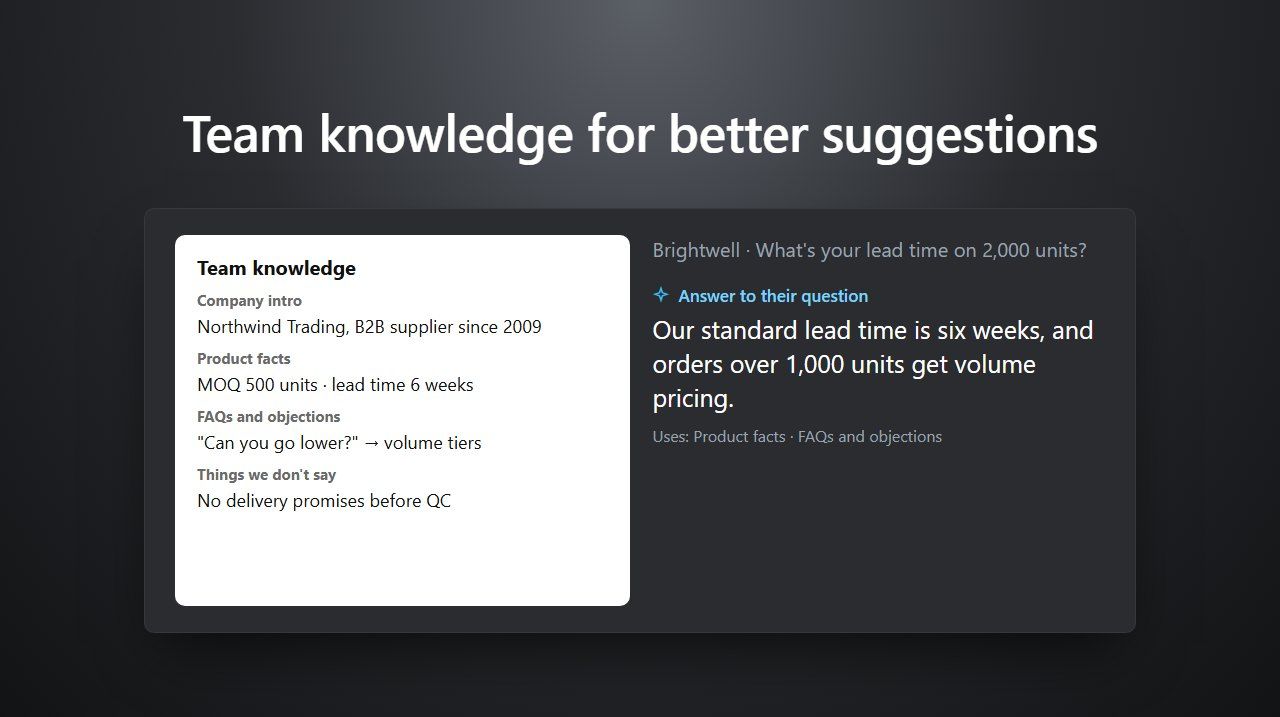
Set up team knowledge so suggestions use your company's facts
On the Business plan, give Deeptrue your product facts, agreed answers and rules, so everyone's meeting suggestions stay accurate. Step-by-step setup.
Stay in the loop
Get the latest Deeptrue updates and industry insights delivered to your inbox.