
Set up team knowledge so suggestions use your company's facts

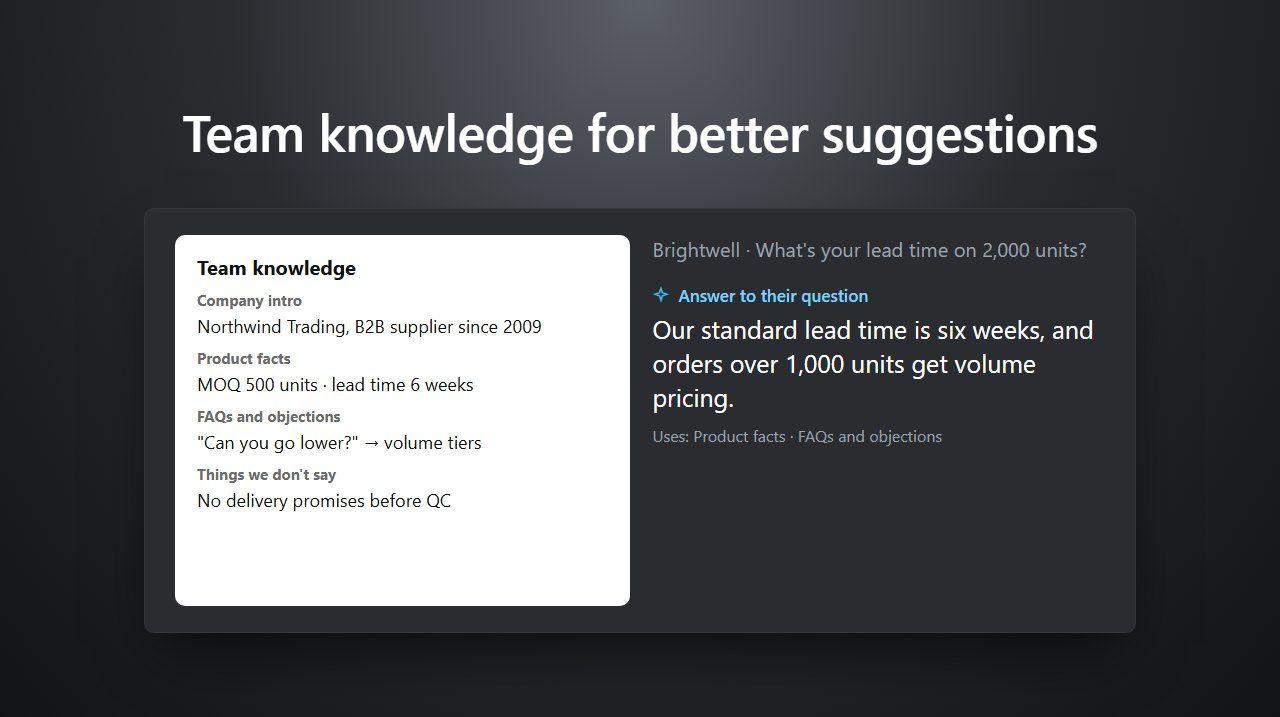
Answer suggestions are only as good as what the AI knows about your business. Team knowledge is where your team writes down the facts and rules it should use: what you sell, how it works, how you answer common objections, and what you never promise. Deeptrue uses it for everyone on the team when it suggests answers during meetings.
Team knowledge is part of the Business plan, together with the team glossary and projects.
Who can do what
Role | What they can do |
|---|---|
Admin | Full access, including billing and member management. |
Editor | Can edit team knowledge, the glossary and projects. No billing or member management. |
Member | Uses the team's knowledge, glossary and projects in meetings. |
Members can open these pages and read the entries; only admins and editors can change them.
Step 1: Open team knowledge
- Log in on the Deeptrue website, open your account menu and choose Settings.
- Under Team workspace, choose Team knowledge.
Step 2: Add entries
Entries are grouped by type. Two types are Always applied: they are used in every meeting, even when the conversation doesn't mention them. The others are used when they match what is being discussed.
Type | What to write | When it is used |
|---|---|---|
Company intro & positioning | How to introduce the company, and the tone to use. | Every meeting (Always applied) |
Product & service facts | Prices, limits, and what's not offered yet. | When the topic comes up |
FAQs & objection handling | Common questions and objections, with the answers your team agreed on. | When the topic comes up |
Things we don't say | Promises and statements the team decided not to make. | Every meeting (Always applied) |
Other | Anything else the AI should know. | When the topic comes up |
To add an entry:
- Click Add entry, or Add on the type you want.
- Choose the Category, give the entry a short Title, and write the Content. Write it the way you would brief a new teammate.
- Click Save. Changes apply to the next suggestions the AI makes in meetings.
Examples
- Company intro & positioning. Title: How we introduce ourselves. Content: We make inspection cameras for food factories. Keep a calm, polite tone. Lead with reliability, not price.
- Product & service facts. Title: Delivery times. Content: Standard delivery in Japan takes 5 business days. Express delivery (2 days) costs extra. We do not ship outside Asia yet.
- FAQs & objection handling. Title: "It's more expensive than the competition". Content: Agree that the upfront price is higher. Explain that maintenance is included for 3 years. Offer a 2-week trial.
- Things we don't say. Title: No release dates. Content: Never promise a date for features on the roadmap. Say we will follow up in writing.
Step 3: Let the AI keep it up to date
When something changes, you don't have to find and edit each entry yourself. Use Ask AI to update team knowledge at the top of the page:
- Describe what changed in plain words, for example: "Express delivery now takes 1 day. Stop offering the 2-week trial."
- Click Suggest changes.
- Review the suggested additions, updates and deletions, untick any you don't want, and click Apply selected changes. Nothing is saved until you apply.
Step 4: Use projects for clients and deals
Projects group meetings, team knowledge and glossary terms by client, deal or topic.
- Under Team workspace, choose Projects, then New project.
- Enter a Name and, if you like, a Description.
- Under Who can see it, choose Everyone in the team or Selected members. Team admins can see every project.
- Click Create project.
To add knowledge for one project, choose the project in the selector at the top of Team knowledge, then add entries. In that project's meetings, the AI uses its entries together with the whole-team entries. Project terms go in Team glossary, under Project.
In the desktop app, each member chooses the project under Settings → Live assist → Project for new meetings. New meetings are filed under that project and use its team knowledge and glossary. After a meeting, its notes can be shared with the project's members from Share in the Meetings window. Notes of meetings shared with the team or a project can also inform later suggestions.
Step 5: Give teammates the editor role
Admins manage roles under Settings → Members:
- When inviting someone: click Invite Members, enter the email address and choose the Role.
- For someone already in the team: open the menu on their row, choose Change role, then Editor.
On the same page, admins also see each member's Minutes used (this period) and Minutes left.
Tips
- Keep each entry about one thing, and short enough to read in a few seconds.
- Put firm limits in Things we don't say. It is applied in every meeting, so a promise you ruled out is not suggested.
- Add product and client names to the team glossary as well, so captions and translation get them right. See the glossary guide.
- More about the plan: Deeptrue for teams and answer suggestions.
Related posts
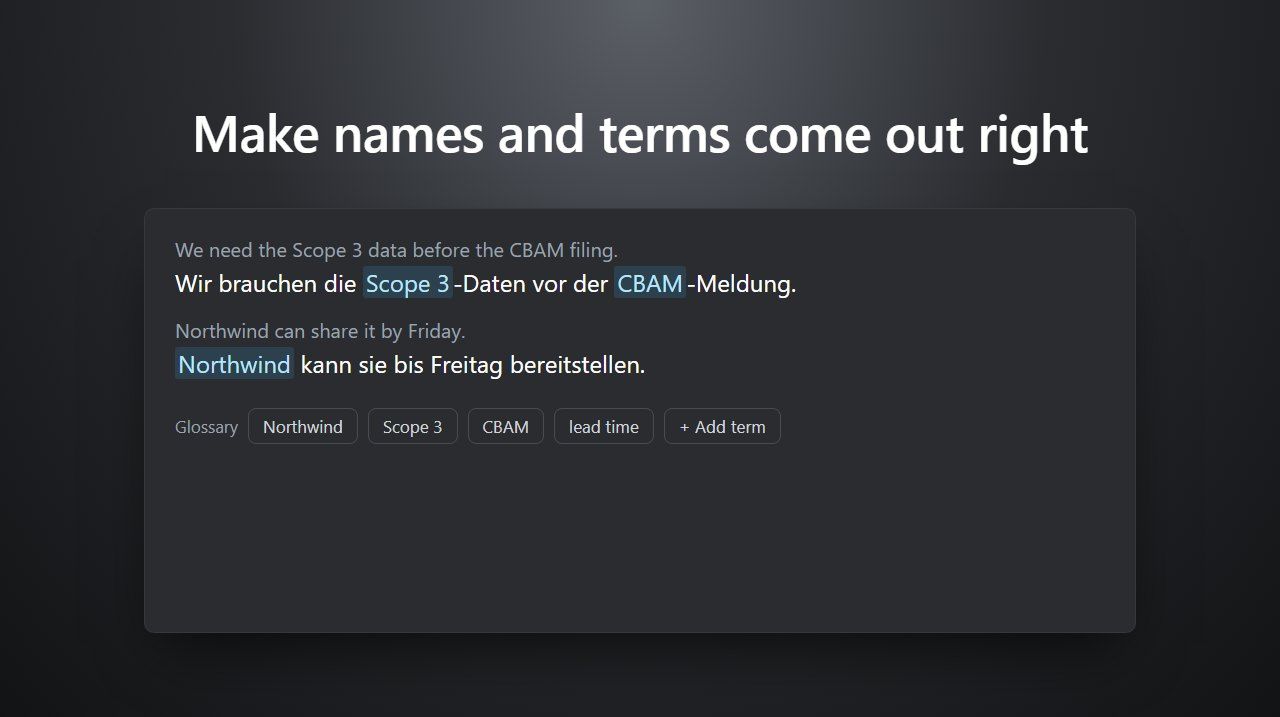
Make names and terms come out right with the glossary
Add client names, product names and jargon to the Deeptrue glossary so captions, translation and suggestions get them right. Personal and team steps.
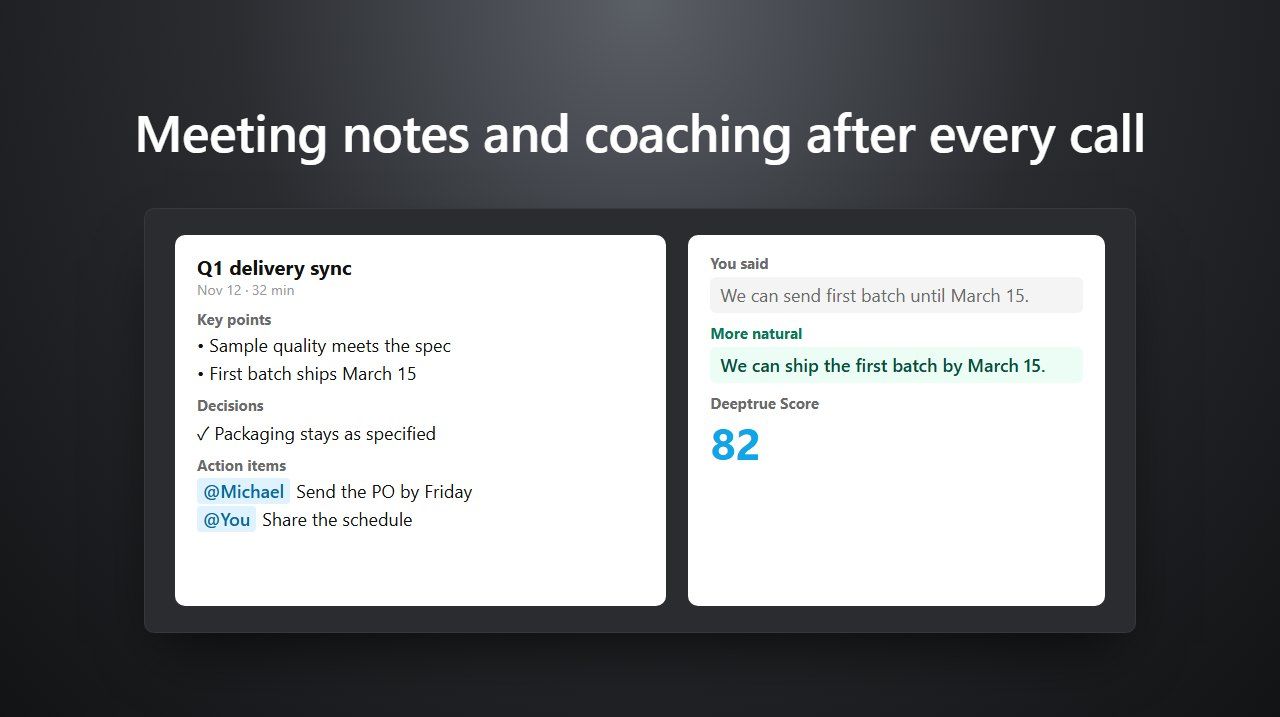
Get meeting notes and coaching after every meeting
After every meeting, Deeptrue writes notes with decisions and action items and coaches what you said. Where to find the report and how to share it.
Stay in the loop
Get the latest Deeptrue updates and industry insights delivered to your inbox.