
Real-Time Captions for Online Classes: A Chinese Student Guide


For real-time captions for online classes, start with your classroom’s built-in captions and check whether they can translate English into Simplified Chinese. English captions, Chinese translation, and a transcript you can review afterward are separate features, with different permissions. Before using an external tool, confirm your course rules on audio processing and retained transcripts—technical availability is not permission to use it.
How should you choose real-time captions for online classes?
Choose based on two tasks: understanding the lecture now and reviewing unfamiliar material afterward. First, distinguish the outputs:
- Same-language captions: English speech displayed as English text.
- Translated captions: English speech displayed as Chinese text.
- Retained transcript: a text record available after the meeting, subject to separate settings and access rules. It is not the same as a recording or study notes.
The table below applies to ordinary online meetings, not automatically to webinars, town halls, or every university account. Platform guidance reflects official documentation checked November 29, 2026, rather than hands-on testing.
Option | Who enables it? | What can the student control? | What should you check for review? |
|---|---|---|---|
Zoom built-in | For translation, the host needs an eligible plan or translated-caption add-on; captions, translation, and relevant language pairs must be enabled. Administrators may lock settings. | Display available captions and choose an available translation language. Request captions when that option is offered. | Live captions are not a downloadable post-meeting asset. Ask about separate Meeting transcript access. |
Teams built-in | School policy controls caption availability. Microsoft’s end-user help describes organizer-wide and individually licensed translation access. | Turn on permitted captions and select an available reading language. | Live captions are not saved. Transcription and download access are separate; past translated transcript views are not retained. |
Deeptrue | The student runs the desktop app, after obtaining any required approval. | Set the source and target languages and read original text with translation in an overlay. | Deeptrue saves original and translated text with speaker labels through Automatic transcripts. Approval must cover retention as well as live use. |
Sources: Zoom’s translation requirements and caption/transcript update; Microsoft’s caption guidance, admin policies, and transcript guidance. (support.zoom.com)
How can you follow a Zoom lecture in Chinese?
Scenario 1: an English-language lecture. You can hear the lecturer, but need Chinese text to follow instructions and unfamiliar terms.
Before buying anything, check the host’s entitlement. As of November 2026, Zoom lists Workplace Business Plus, Enterprise Essentials, Enterprise Plus, Enterprise Premier, or assignment of the Translated Captions add-on as host prerequisites. Automated and translated captions must also be enabled. Buying something for your own student account does not automatically unlock translation in someone else’s lecture. (support.zoom.com)
When translation is available:
- Find Show Captions in the meeting controls.
- Open the arrow beside it and look for Captions and translation.
- Check that the spoken-language setting matches the lecture—English in this example. Changing it to Chinese does not translate English speech.
- Enable Translation, select Simplified Chinese, and save.
Participants can choose independently from the host-enabled language pairs. Zoom lists both Simplified and Traditional Chinese, but that does not guarantee both are enabled in your class. These steps follow Zoom’s official translated-caption instructions. (support.zoom.com)
If captions are restricted, use Request captions when offered. If the host has disabled them or no request option appears, ask the lecturer or university IT; there is no promised attendee-side override. Zoom’s caption-viewing guidance explains the request-and-approval distinction. (support.zoom.com)
Fictional example: the lecturer says, “Please upload your draft before Friday’s seminar.” A Chinese rendering is “请在周五的研讨课之前上传草稿。” Treat that as a prompt to check the course instructions for the exact date, time, and upload location—not as the final authority on the deadline.
How can you participate in a Teams group project?
Scenario 2: an English-speaking project group. Your immediate goal is to understand who owns each slide and when the draft is due.
As of November 2026, Microsoft’s end-user help describes two access routes:
- An organizer’s eligible Teams Premium or Microsoft Copilot license enables translated captions for all participants.
- An individual participant with Teams Premium or Microsoft 365 Copilot can access translation for themselves. (support.microsoft.com)
That does not mean every education account includes translation. School-admin policy is a separate check. (learn.microsoft.com)
Microsoft documents more than one interface, so follow the route that matches your app:
- Main caption-help route: open More actions → RTT → Turn on, enable Live Captions, then select More options → Open caption settings → Translate to. (support.microsoft.com)
- Pop-out-caption route: open More actions → Language and speech → Show live captions, select Open captions in new window, then Caption settings → Language settings → Translate to, as described in the pop-out-caption guide. (support.microsoft.com)
- Check that the meeting’s spoken language matches the discussion, and choose Simplified Chinese as your reading language. If a setting needs changing during active transcription, ask the organizer rather than interrupting transcription just to change it. (support.microsoft.com)
Fictional example: you understand that you will prepare slides 3–5, but the deadline is unclear. Confirm aloud or in the group chat:
“I’ll prepare slides 3–5 and share the draft by Thursday at 5 p.m. Is that correct, and which time zone are we using?”
A written confirmation gives the group something everyone can check, regardless of which caption language they use.
What should you ask your school when Chinese translation is missing?
Before purchasing a license or installing another app, check:
- Account: are you signed in with the intended school account?
- Organizer: who owns the meeting, and does their account provide translation?
- Policy: can your account turn on captions?
- Entitlement: does translation come from the organizer or an individual license?
- Language: is English-to-Simplified-Chinese translation enabled?
- Review access: is transcription allowed, and may students access the retained text?
There are two documentation cautions worth raising with IT. Zoom says administrators can lock translation settings and warns that some higher-education accounts may lack access—not that all university accounts are excluded. (support.zoom.com)
For Teams, the admin article still describes translated-caption entitlement around the organizer’s Teams Premium license, unlike the broader access described in its end-user help. Ask campus IT to confirm your actual setup rather than assuming those descriptions are fully aligned. (learn.microsoft.com)
You can send this message:
“Could you confirm whether this class supports English-to-Simplified-Chinese captions, whether students can enable them, and whether a transcript is available for private study? If not, is an external translation tool that processes class audio and retains a transcript permitted?”
You can also ask the accessibility or student-support office what assistance may be available. If translation or external-tool approval is unavailable, request advance slides, a written terminology list, original-language captions where permitted, or clarification during office hours.
How can you set up Deeptrue on your own laptop, if approved?
Deeptrue is an optional desktop app for macOS 13+ and Windows 10+. Only the person wanting translation runs it; other participants need no installation or account, and no meeting bot has to join.
It captures sound played by other apps on the computer, excluding Deeptrue itself. A desktop meeting app or browser tab playing the lecturer’s voice can therefore supply the audio. This is audio capture alongside the meeting—not a native platform integration.
For an approved English-to-Chinese session:
- Obtain permission for external audio processing and retained transcripts.
- Install the desktop app on a supported computer.
- Set the other side’s language to English and your language to Simplified Chinese.
- Close unrelated audio sources, because capture is not limited to the meeting app.
- During an approved practice call, check Live Translated Caption: original speech text and translation appear in a semi-transparent overlay on top of the meeting screen.
Traditional Chinese as used in Taiwan is a separate option. For a Japanese- or Korean-language class, set the source language accordingly rather than leaving it on English, and check the same course permissions.
You do not need to select Deeptrue Microphone simply to read captions. That virtual microphone belongs to Interpreter Mode, which delivers spoken translations; it is not part of this reading-focused classroom workflow.
These Deeptrue details reflect product facts checked November 27, 2026, with audio capture and Chinese options checked November 29.
What can you keep and review after class?
Do not assume that visible captions become a saved transcript. As of November 2026, the distinctions are:
Tool | What happens after the meeting? |
|---|---|
Zoom | Its May 2026 update says participants cannot keep or download live captions as a post-meeting asset. Retention requires Meeting transcript, with host/admin controls. (support.zoom.com) |
Teams | Live captions are not saved. With transcription, only the original transcript is retained—not past translated transcript views. Organizers and co-organizers can download by default; others depend on configuration and IT policy. (learn.microsoft.com) |
Deeptrue | Through Automatic transcripts, Deeptrue saves original and translated transcripts with speaker labels after each meeting. Use this only within the permission granted. |
Zoom’s Meeting transcript help lists Pro, Business, or Enterprise prerequisites and explains host/admin control and participant access requests. Microsoft’s transcript help explains retention and download permissions. Attendance alone does not guarantee a copy. (support.zoom.com)
For any permitted transcript, use a short review routine:
- Mark unclear passages rather than rereading everything.
- Compare the original wording with the Chinese translation, where both are available.
- Verify technical terms, names, numbers, and deadlines against course materials.
- Bring unresolved questions to office hours.
Return to the fictional Zoom instruction: “before Friday’s seminar” does not specify a clock time. Check the seminar schedule and assignment page before entering the deadline in your calendar.
Use and share retained material only within the permission granted. Captions help you access the discussion; they do not replace learning the subject or checking source material.
How should you prepare for interviews without assuming live AI is allowed?
Scenario 3: an internship interview about your group project. Rehearse a truthful account of your role, your decisions, and what you learned before considering any live assistance.
Deeptrue’s Practice Mode supports realistic two-way interview rehearsal. Practice three things:
- Explaining your actual contribution to the slides or research.
- Asking, “Could you clarify which part of the project you’d like me to explain?”
- Asking a relevant follow-up question about the role.
For the interview itself, separate three permissions: translated captions to understand questions, transcript retention, and AI-generated wording suggestions. Approval for one is not approval for the others.
Deeptrue’s Smart Suggestion (Assistant Mode) listens to the conversation and provides target-language sentence suggestions that you read aloud in your own voice. It is intended for users who can read the suggested language, and should be used in an interview only when that assistance is explicitly permitted.
Describe the features you actually plan to use:
“May I use translated captions to understand questions? The tool also saves a transcript. Separately, are AI wording suggestions allowed in this interview?”
If permission is refused or unclear, prepare beforehand and use no live assistant during the interview. As one employer-specific example, Google DeepMind’s candidate guide, checked November 29, 2026, permits AI preparation but prohibits live interview or interview-task use unless instructed otherwise. That is not a universal hiring policy or a rule for every internship. (storage.googleapis.com)
What should you check before trying a short session?
Choose a short, approved practice call or class segment—not an entire semester’s workflow—as your first check.
Deeptrue’s Free plan is $0 with 60 minutes in total and up to 60 minutes per session. It is not a recurring monthly allowance or unlimited classroom access. If the workflow is approved, download Deeptrue for a short session and check pricing and limits before planning longer use.
Before starting, confirm:
- Permission covers the features you will actually use.
- Source and target languages are correct.
- The lecturer’s audio is playing and captions have been checked.
- Unrelated audio sources are closed.
- Transcript handling and sharing rules are agreed.
- A fallback is ready: slides, written questions, or permitted original-language captions.
FAQ
Can I use translated Zoom captions as an attendee?
Yes, when the host has the required entitlement and has enabled captions, translation, and the relevant language pair. You can choose an available output language. If captions are restricted, request them when that option is offered; a personal purchase does not automatically unlock someone else’s lecture. (support.zoom.com)
Does every student need a translation license?
Not necessarily. Zoom’s translation requirements apply to the host, and Teams also offers organizer-based access. Confirm the school’s policy and account configuration before buying anything. (support.zoom.com)
Why does Teams show captions but no Translate to option?
Ordinary captions and translated captions have different access requirements. Check the signed-in account, translation entitlement, school policy, and the documented interface that matches your app. Seeing English captions does not prove Chinese translation is available. (learn.microsoft.com)
Can I save Zoom captions or keep a translated Teams transcript?
Zoom’s current documentation separates live captions from the retained Meeting transcript feature. Teams does not save live captions, and past translated transcript views are not stored; only the original transcript is retained. In both cases, ask about transcript access rather than assuming a download is included. (support.zoom.com)
Can I see English and Chinese together?
Deeptrue’s Live Translated Caption shows original speech text with translation in an overlay. Set English as the other side’s language and Simplified Chinese as yours, and obtain permission for external audio processing and the automatically retained transcript before using it in class.
Related posts
Chinese Captions for Japanese Meetings: Follow Along and Reply
Use Chinese captions for Japanese meetings, check Teams, Zoom, and Meet eligibility, prepare Japanese replies, and review bilingual meeting notes.
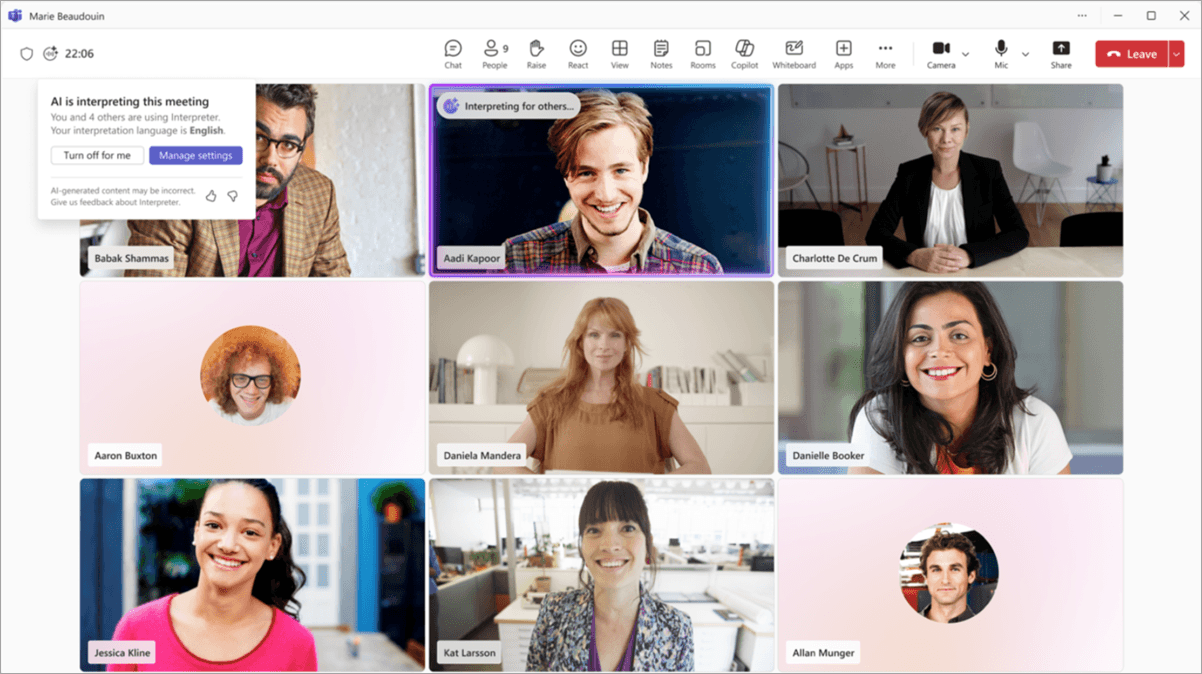
Teams Live Translation Without Copilot: Chinese Captions
Teams live translation without Copilot is possible. Learn how to get Chinese captions, check guest access, and send translated speech in meetings.
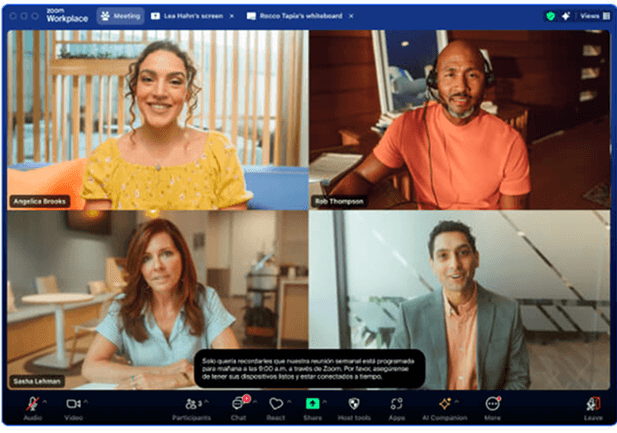
Zoom Captions: Setup, Chinese Translation and Button Fixes
Turn on Zoom captions, translate speech into Chinese, and fix missing controls. Learn which settings participants, hosts, and admins can change.
Stay in the loop
Get the latest Deeptrue updates and industry insights delivered to your inbox.