

To translate Japanese to English in Teams meeting captions, turn on captions, set the spoken language to Japanese, and choose English under Translate to. For English speech with Japanese subtitles, reverse those settings. Translated captions require an eligible organizer or participant license; they do not create translated audio or automatically save a translated transcript. (support.microsoft.com)
Documentation checked: November 19, 2026. This guide covers work meetings, primarily in desktop Teams—not town halls or personal accounts. It is based on Microsoft documentation, not a hands-on client test; menu layouts can differ.
Choose the task you need:
Your goal | Start with |
|---|---|
Read Japanese speech in English now | Caption settings below |
Handle colleagues speaking both languages | Multilingual speech recognition |
Review an English document afterward | Post-meeting transcript translation |
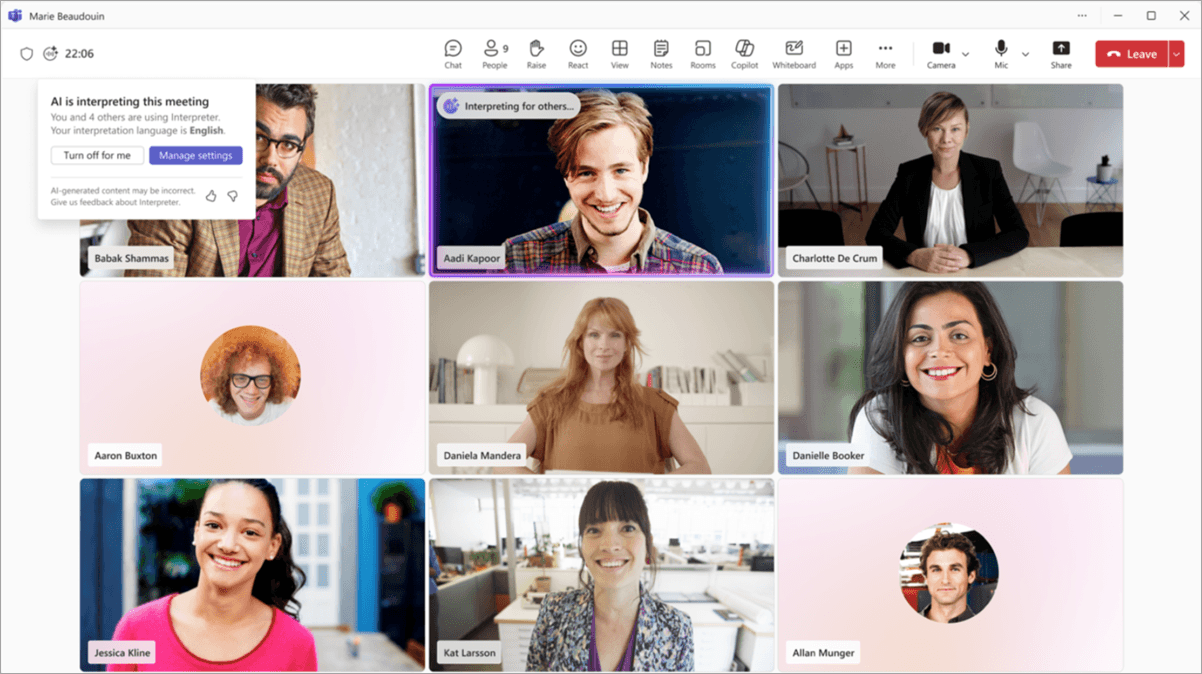
Hear interpreted speech | Teams Interpreter |
Speak Japanese and send English audio, or the reverse | The Deeptrue reply workflow |
How do you translate Japanese to English in Teams meeting captions?
The spoken language tells Teams what to recognize. The translation target tells it what language you want to read. Do not set the spoken language to English merely because you want English subtitles.
What people are saying | Spoken-language setting | Translate to |
|---|---|---|
Japanese | Japanese | English |
English | English | Japanese |
Microsoft lists both languages as supported for recognition and caption translation in its live captions documentation. (support.microsoft.com)
- Join the Teams meeting and open More actions → Captions.
- Open the caption settings.
- Check the spoken language. Choose Japanese when the speaker is speaking Japanese, if you have permission to change it.
- Find Translate to and select English.
- Ask the speaker to say a short sentence. If the result is clearly wrong, check the recognition language before changing the translation target. (support.microsoft.com)
Microsoft documents more than one interface. Its pop-out captions guide uses More actions → Language and speech → Show live captions, with language controls in caption settings. The main captions page also describes a translation route through the RTT pane. Follow the controls available in your client rather than expecting every organization to show an identical menu. (support.microsoft.com)
For the reverse direction, use English recognition and Japanese translation. Keep the same source-versus-target distinction when preparing any Japanese–English meeting translation. (support.microsoft.com)
Why is Translate to missing or unavailable?
First identify which control is missing. Captions, caption translation, and permission to change the spoken language are separate issues.
Problem | What to check | Practical next step |
|---|---|---|
Captions are unavailable | Your organization may disable captions through meeting policies | Ask IT whether captions are enabled for the meeting |
Captions work, but Translate to is missing | Organizer-provided access or your individual license | Ask the organizer and IT to confirm licensing |
The spoken language cannot be changed | Restrictions while transcription is running | Ask the organizer, co-organizer, or transcription initiator to correct it |
These checks distinguish policy restrictions from licensing and spoken-language permissions. (learn.microsoft.com)
Who provides access? As of November 2026, Microsoft's main captions help page says:
- An organizer with Teams Premium or Microsoft Copilot enables translated captions and transcription for all participants.
- Without organizer-provided access, a participant with Teams Premium or Microsoft 365 Copilot receives the Translate to option. (support.microsoft.com)
There is a documentation discrepancy worth knowing: some Microsoft administrative and accessibility pages still describe translation as Premium-only, while the main captions and multilingual recognition help pages also name Copilot. Confirm the license actually assigned to you with IT rather than relying on a generic subscription label. (learn.microsoft.com)
During transcription, spoken-language controls are restricted to organizers, co-organizers, the transcription initiator, or the initiator of the feature that started transcription. Ask an authorized person to change the language; do not stop an ongoing transcript just to regain a setting. (support.microsoft.com)
Microsoft's administrative guidance also states that transcription permission is needed for both the organizer and the person starting it. For a focused caption workflow, see Teams translated captions. (learn.microsoft.com)
What if participants alternate between Japanese and English?
Use multilingual speech recognition, where available, instead of repeatedly switching a single recognition language. As of November 2026, Microsoft documents English and Japanese support, availability with Teams Premium or Microsoft Copilot, and individual spoken-language selection without requiring Interpreter to be active. (support.microsoft.com)
The organizer can prepare it before the meeting:
- Open the meeting's calendar event.
- Select Options → Recording and transcription.
- Enable multilingual speech recognition.
- Apply the change. (support.microsoft.com)
Participants can then configure their own language settings:
Participant | Their spoken language | Their translation target |
|---|---|---|
English-speaking colleague | English | English, to read Japanese contributions |
Japanese-speaking colleague | Japanese | Japanese, to read English contributions |
The translation target is a reading preference, not a declaration of what language you speak. A Japanese-speaking participant who wants to inspect English translations can instead choose Japanese as their spoken language and English as their target. (support.microsoft.com)
This differs from changing the recognition language in a single-language meeting, which can affect recognition for everyone rather than just your display. Follow Microsoft's multilingual setup instructions. (support.microsoft.com)
Before the meeting, have each participant say one sentence in their usual language and confirm the captions on both sides. This is a readiness check, not a guarantee of translation quality.
How can you translate a transcript after the meeting?
Live captions are not saved, and Teams stores the original transcript—not the history of live-translated transcripts. Do not assume the English text you read during a Japanese meeting will be available as an English download afterward. (learn.microsoft.com)
You can translate the live transcript by opening its pane, opening language settings, enabling translation, and choosing a target. However, late joiners see live transcript translations only from their joining point onward. These distinctions are documented in Microsoft's transcript guide. (support.microsoft.com)
How do you make a translated document?
Use an authorized transcript download followed by Word document translation:
- Open the meeting chat in Teams.
- Select Recap → Transcript → Download.
- Download the .docx transcript. Organizers and co-organizers can download .docx or .vtt by default; other participants' permissions depend on organizational policies.
- Keep the original and check names, figures, and important terminology in the source text.
- Open the document in Word and choose Review → Translate → Translate Document.
- Choose English as the target for a Japanese transcript—or Japanese for an English transcript—and create the translated copy. (support.microsoft.com)
This combines two documented features; it is not a special Teams “export translated transcript” command. Microsoft's Word translation instructions cover Microsoft 365 subscribers and Office 2021, with internet access and connected experiences required. (support.microsoft.com)
Use only an organization-approved destination for meeting material. If you cannot download the transcript, request it from the organizer rather than trying to bypass permissions.
How do you add translated text beside a recording?
Microsoft 365 has a separate, pay-as-you-go workflow for translating video transcripts:
- Ask the video owner to open the recording's Video settings → Transcripts and captions.
- Confirm that a source transcript exists. Teams transcripts can supply captions for recordings in OneDrive or SharePoint. If only a recording exists, an owner or editor can generate a transcript from the video player, subject to tenant and site settings.
- Select Translate, then choose the source and target languages.
- After generation, viewers can select the translated captions or transcript. Generated translations can also be downloaded and edited. (support.microsoft.com)
The Translate button requires an existing transcript. Administrator enablement, same-tenant Azure subscription resources, configured pay-as-you-go billing, and document processing are also required. This is separate usage billing, not simply a benefit of having live translated captions; the translation meter charges for successful generation, not viewing. See Microsoft's video translation requirements and transcript-generation guidance. (support.microsoft.com)
Finally, translated intelligent recap is not a full translated transcript. As of November 2026, Microsoft's admin documentation labels multilingual intelligent recap Public preview, includes English and Japanese, and says it follows the participant's live-transcription translation language. Eligible Microsoft 365 and Teams licensing plus Teams Premium or Microsoft Copilot is required. Treat a recap as a summary, not a verbatim record. (learn.microsoft.com)
See the Teams transcript workflow for related preparation.
How do you hear Japanese–English audio with Teams Interpreter?
Teams Interpreter provides translated audio rather than just text. Microsoft's administrative documentation, updated on November 18, 2026, distinguishes two experiences:
Mode | Who hears interpretation? | Access and limits |
|---|---|---|
Simultaneous | The eligible user who activates their listening experience | Eligible Microsoft 365, Teams, and Copilot licenses; 20 hours per user per month, with additional access subject to capacity |
Consecutive | Everyone hears interpretation after each speaker's turn | Eligible organizer with Microsoft Copilot (Premium), base Microsoft 365 and Teams licenses, and enabled Copilot Credits billing; two languages and up to 50 participants |
Once an eligible organizer activates consecutive interpretation, participants can hear it regardless of their own Copilot license. That does not mean activating any Interpreter mode gives everyone the same experience. Both modes are controlled by the organization's Interpreter meeting policy. See Microsoft's current mode-specific requirements. (learn.microsoft.com)
On desktop:
- Open More actions → Interpreter.
- Choose the mode.
- For simultaneous listening, choose English to hear Japanese contributions in English, or Japanese for the reverse direction.
- For consecutive interpretation, the eligible organizer selects English and Japanese as the two languages.
- Select Turn on. (learn.microsoft.com)
Consecutive interpretation has separate Copilot Credits billing requirements. Do not assume it draws from the simultaneous mode's included allowance; confirm the applicable charges with IT before using it. (learn.microsoft.com)
Microsoft warns that recordings exclude Interpreter's translated audio, and that rapid or overlapping speech, names, genders, and technical terms can cause problems. Leave room for interpreted speech, especially between turns. These limitations and the setup are described in the Interpreter user guide. (support.microsoft.com)
For the broader distinction between reading and listening, see Teams interpretation.
How can you reply in your own language with Deeptrue?
If your main problem is delivering a reply—not just understanding captions—Deeptrue provides a separate desktop workflow alongside Teams. As of November 2026, it supports macOS 13+ and Windows 10+. Only the person wanting translation runs it; other participants need no installation or account, and no meeting bot needs to be invited.
For a Japanese-speaking participant who wants English-speaking colleagues to hear English:
- Open Deeptrue alongside Teams.
- Configure Japanese → English and use Interpreter Mode.
- In Teams, select Deeptrue Microphone as the meeting microphone.
- Speak Japanese. Deeptrue delivers the English translation in a natural AI-generated voice through that virtual microphone.
For an English-speaking colleague replying in Japanese, reverse the language direction to English → Japanese.
Keep the functions separate:
Need | Deeptrue feature | What happens |
|---|---|---|
Read incoming speech | Live Translated Caption | Original speech and translation appear in a semi-transparent overlay on the meeting screen |
Send translated speech | Interpreter Mode | Translated AI-generated speech goes through Deeptrue Microphone |
Speak the target language yourself | Smart Suggestion (Assistant Mode) | Suggested sentences appear for you to read aloud in your own voice |
For Japanese speakers, Pronunciation Guide can display sentences in katakana to help with reading aloud. That is a speaking aid, not voice interpretation.
Run a short audio check and use one outgoing interpretation route at a time so listeners know which voice to follow. If the virtual microphone is unavailable, use the virtual audio troubleshooting guide.
Which Japanese names, terms, and numbers should you prepare?
Before the call, make a short reference sheet containing:
- Participant names in kanji and their preferred Roman spelling.
- Product names, model numbers, and product codes.
- Department names and agreed English equivalents.
- Technical terms and the intended meaning of internal shorthand.
For a fictional glossary exercise, imagine a team uses アサイン. Write down whether the intended English is assign, assignment, or something more specific in that context. Do not assume every katakana term has one fixed English equivalent.
Large numbers deserve their own check:
Japanese unit | Full digits | English equivalent |
|---|---|---|
千 | 1,000 | One thousand |
万 | 10,000 | Ten thousand |
百万 | 1,000,000 | One million |
億 | 100,000,000 | One hundred million |
十億 | 1,000,000,000 | One billion |
In particular, 億 means one hundred million, not one billion.
A fictional confirmation exchange:
「1億円、つまり100,000,000円ですね?」 “To confirm, that is JPY 100 million?”
Write JPY 100,000,000 in chat to confirm the digits and currency. No exchange-rate conversion is needed.
For Deeptrue preparation, Custom Instructions / Add Context lets you upload meeting files or notes, or provide instructions to improve suggestions. Treat that as preparation support—not a promise that terminology will be enforced in every output.
What should you check before, during, and after the meeting?
- Before: Choose captions, a document, or audio; confirm access; test both Japanese–English directions; prepare names and figures; check the outgoing microphone if using voice translation.
- During: Inspect the recognition language before blaming translation. Confirm important numbers in writing and let each speaker finish. Keep the relevant caption or interpretation workflow handy.
- After: Request the authorized original transcript, choose document or recording-based translation, and verify decisions against the source. Follow the transcript workflow rather than assuming live translated text was saved.
If you want to try the desktop reply workflow, download Deeptrue. The Free plan is $0 with 60 included minutes, up to 60 minutes per session; see pricing for plan details.
FAQ
How do I show English captions for Japanese speech in Teams?
Turn on captions, set the spoken language to Japanese, and select English under Translate to. If the meeting alternates between languages, ask the organizer to enable multilingual speech recognition where available. (support.microsoft.com)
Can I use translated captions without buying my own Teams Premium license?
Yes, when the organizer provides eligible access. As of November 2026, Microsoft's main captions help page says an organizer's Teams Premium or Microsoft Copilot license enables translated captions for all participants. Otherwise, check your individual license with IT. (support.microsoft.com)
Why is Translate to missing in Teams?
Check organizer-provided access and your own assigned license. If captions themselves are missing, ask IT about meeting policy. A locked spoken-language control is a different issue and may require the organizer or transcription initiator to make the change. (learn.microsoft.com)
Does Teams save the translated transcript I saw during the meeting?
No—not automatically. The live-translated version is not retained. For a translated record, use an authorized original transcript with document translation or the separately configured video transcript translation workflow. (support.microsoft.com)
Can I speak Japanese while other participants hear English?
Yes. Teams' organizer-activated consecutive Interpreter mode supports English and Japanese, subject to its prerequisites and billing. (learn.microsoft.com) Alternatively, Deeptrue Interpreter Mode can translate Japanese speech into AI-generated English speech sent through Deeptrue Microphone in Teams.
Related posts
Teams Interpreter Agent License: Copilot and Guest Rules
Check Teams Interpreter agent license requirements, guest restrictions, translated caption access, and costs before buying Premium or Copilot.
2026 Guide: Microsoft Teams Live Translation & AI Voice Interpretation
Explore real-time translation and AI voice interpreting in Microsoft Teams. Compare Deeptrue, available on Zoom, Teams, Meet, and Webex.
Stay in the loop
Get the latest Deeptrue updates and industry insights delivered to your inbox.